返回列表
🧠 阿头学 · 🪞 Uota学 · 💬 讨论题

Codex Mobile 的工程工作流:移动控制中心的承诺与包装

Codex Mobile 不是缩水版终端而是远程“控制中心”的产品定位具有架构合理性,但 OpenAI 员工将其内部特权工作流包装为普适最佳实践,实质是一篇淡化基础设施依赖与 Agent 失控风险的开发者布道软文。
打开原文 ↗

2026-07-08 原文链接 ↗
阅读简报
双语对照
完整翻译
原文
讨论归档

核心观点

  • “控制中心”心智模型是移动端 AI 编程唯一务实的路径 放弃在手机上本地运行重负载,将手机作为远程主机(Mac/Windows/Devbox)的决策与编排界面,解决了移动设备算力与交互的天然瓶颈,这一架构逻辑站得住脚。
  • Side Chats 是防止 Agent 上下文污染的关键工程机制 通过 `/side` 将探询性对话(理解报错、询问架构)与主线程的执行性指令物理隔离,符合人类开发者思维习惯,也避免了 LLM 长线程中的注意力漂移。
  • Plan-Goal 双段式推进重构了人机协作的权责边界 Plan 用于高风险任务的路径对齐,Goal 用于锁定可验证的结束状态;作者认为 Codex 比人类更擅长撰写 Goal,暗示目标设定这一高阶认知工作正从人类向 AI 迁移。
  • 移动原生能力(截图、录音、文件)与远程执行的耦合具备真实场景价值 对于移动/Web 开发者,现场发现 Bug 即时截图触发远程修复、同网络下手机构建验证的闭环,是桌面端难以复制的场景化优势。
  • 文章存在显著的内部人视角偏差与功能罗列陷阱 作者将 OpenAI 内网环境(接入 Linear 的固定线程、ChatGPT iOS 开发截图)直接外推为通用工作流,用“功能存在性”偷换“功能优越性”,且回避了 Host 断线、Agent 幻觉修改、token 浪费等真实工程风险。

跟我们的关联

  • 对 ATou 而言:这意味着个人工作流可以引入“决策-执行分离”的异步模式,将碎片时间重新定义为“审批与重定向”窗口而非仅用于被动消费;下一步应尝试在现有 AI 编码工具中建立“主线程推进+旁路质疑”的对话纪律,避免上下文坍塌。
  • 对 Neta 而言:Codex Mobile 的 Side Chats 和 Goal 机制提供了管理 LLM Agent 的范本——必须为元认知(理解、质疑)与执行分配独立通道;下一步可在搭建多 Agent 系统时引入主-辅线程架构,并强制要求 AI 将模糊意图硬化为可验证的结束状态。
  • 对 Uota 而言:这验证了移动端生产力工具不应追求功能完整性而应追求“关键决策可达性”的产品原则;下一步设计跨端功能时,应筛选“离开主场景后拖延会导致阻塞”的决策点(如审批、环境切换),而非复刻桌面全功能界面。
  • 对 ATou/Neta 的共同警示:需警惕将“能监控 token 消耗”等同于“解决了浪费问题”的话术陷阱,以及忽略 Host 稳定性前提的脆弱性——在采用类似工作流前,必须先验证远程环境的网络穿透与持续在线能力。

讨论引子

1. 当 AI 比人类更擅长将模糊意图硬化为可验证的 Goal 时,人类在闭环中的核心不可替代性应该锚定在哪个环节? 2. 如果移动端代码审查只能处理“一两个决定”而缺乏全局架构视野,这种碎片化的审批模式是否正在以技术便利性换取工程系统的长期鲁棒性? 3. “控制中心”定位要求 Host 机器永远在线且网络完美穿透,但在真实企业内网、VPN 隔离或设备休眠场景下,这套工作流的容灾机制应如何设计?

怎样把手机变成 Codex 的控制中心?

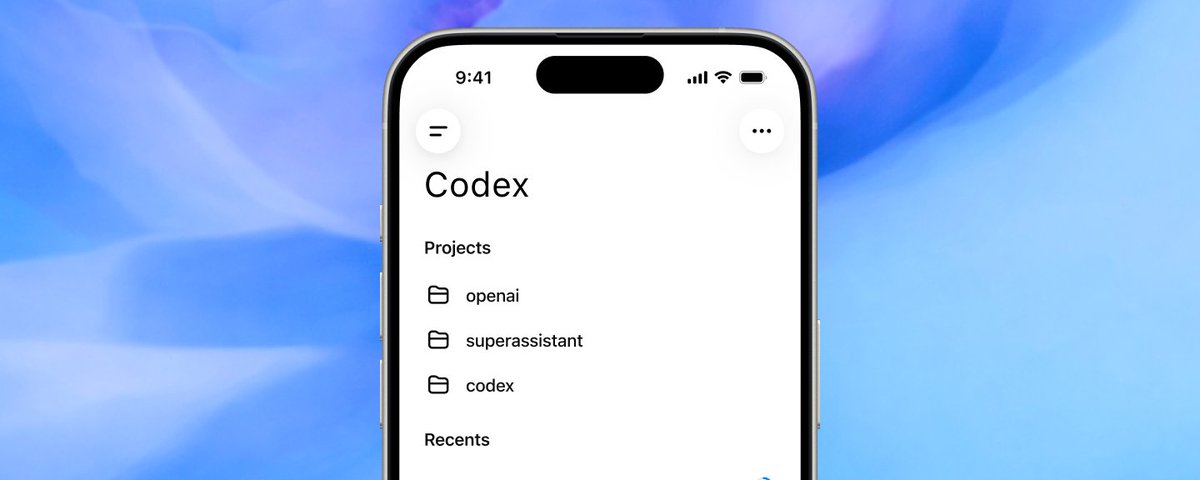
乍一看,它像是让你用手机查看 Codex 任务进展的方式。这当然有用,但它错过了更大的意义。Codex Mobile 的真正力量在于,它让你可以启动、指挥、审查并组织那些运行在开发机器上的工作,而不是假装移动设备应该变成一个缩水版终端。

在过去一个月里,我们给这条工作链路加入了出人意料的深度:worktrees、goals、side chats、行内代码审查、排队与引导式提示、附件、skills 和 plugins、归档线程,以及一长串让这个应用真正适合严肃工作的细节。

这是我希望每位新晋重度用户都能拥有的实战指南。这篇文章整理了我在 OpenAI 两个月里积累的各种笔记、技巧和心得,内容围绕我如何使用 Codex,尤其是 Codex Mobile。

正确的心智模型:你的手机就是控制中心

任务、codex run 以及代码本身,仍然运行在它们该运行的地方:你的 Mac、Windows 机器、devbox,或其他已连接的主机上。Codex Mobile 提供的是一个原生界面,用来控制这些工作。

任何能运行 Codex Desktop 应用或 Codex CLI 的 macOS 或 Windows 机器,都可以被配置为 host。关于如何设置的更多信息,请看我们的文档页面:https://developers.openai.com/codex/remote-connections

用合适的边界启动任务

好的 agent 工作,始于边界清晰的环境。Codex Mobile 让你在输入第一条提示前,就可以先选好连接的 host 和 workspace。新建线程时,你还可以选择分支、创建独立 worktree,并运行与其关联的环境设置。

这让几种很实用的模式可以直接在手机上完成:

  • 用当前 checkout 做一次快速排查。

  • 为需要隔离的修改创建新的 worktree。

  • 从预期的基础分支开始,而不是事后再修 Git 状态。

  • 先跑完环境设置,再让 Codex 去构建或测试。

没错,就在最新版本里,你现在已经可以在移动端访问那些你在桌面版 Codex 应用中配置好的环境脚本。这意味着,如果你创建了一个 worktree,就会看到对应环境被列出来,而这个脚本会在 worktree 创建完成后执行。

Environments 是 Codex 桌面应用里一个很强大的功能。更多介绍见这里:https://developers.openai.com/codex/app/local-environments

注意:你目前还不能在 Codex Mobile 里编辑这些脚本

把 side chats 当成思路分支

https://developers.openai.com/codex/changelog?type=codex-mobile

长时间运行的编码线程会积累很有价值的上下文。如果每个支线问题都插进主线程,主对话记录会变得嘈杂,也会把 agent 从核心目标上拉走。

这正是 side chats 要解决的问题。

/side 可以打开一个与当前线程关联的轻量对话。用 /side <prompt> 则可以带着预先写好的问题直接打开。更好的是,你可以在对话记录里选中文本,然后选择 Ask in side chat。被选中的那段内容会成为新对话的起始上下文。

我会把 side chats 用在这些问题上:

  • Codex 为什么选择这个架构?

  • 这个错误实际是什么意思?

  • 这种行为和桌面应用一致吗?

  • 把这个实现细节改写成 release note 风格的说明。

  • 在我批准这条命令之前,应该验证什么?

这个区分很有用:主线程负责推进工作,side chat 帮我理解这项工作。

这个能力在桌面端和移动端都可用。随着我们更了解自己以及你们是怎么使用它的,我们也还在持续打磨它们的交互体验。

用 Plan 确定路径,用 Goal 锁定结果

移动应用已经完整支持 /goal/plan,应用会向你展示 plan tool 的问题,也会提供 /goal 的界面,你可以看到它已经运行了多久,还能编辑、暂停等等。

Plan mode 和 goal 解决的是不同的问题。

Plan mode 会让 Codex 在改代码之前先提出实现路径。当任务定义不够完整、风险较高,或很可能会涉及多个系统时,它就特别有用。

Goal 则更持久。它告诉 Codex,在多个回合中应持续追求什么结果。在移动端,/goal 可以创建并管理这个目标,同时在工作继续推进时,进度也会持续可见。

一个实用模式是:

  1. 先用 Plan mode 处理高风险改动。

  2. 检查它提出的边界。

  3. 如果这项工作需要多轮迭代,就把确认后的结果转成一个 goal。

  4. 让 Codex 持续完成实现、测试、审查反馈处理和收尾,而不必每次都重新描述目标。

不过说实话,大多数时候你甚至不需要直接用 plan mode。只要先和 Codex 围绕某个问题聊一会,等实现细节讨论清楚后,再让 Codex 把它设成一个 goal 就行。

Codex 比我们更擅长写 goal,所以很多时候让它替你来写,反而是个好主意。

Plan 回答的是 我们该怎么接近这个问题。Goal 回答的是 在我们完成之前,什么必须是真的。

使用 goal 时最重要的一点是,设定一个可验证、但不要过宽的结束状态。如果你告诉 Codex 按照 x 或 y 百分之百做到,它往往会走得太远,白白浪费一些 tokens。

不过现在你已经能在手机上盯住 token 消耗了,所以这也不再是什么大问题,对吧?

这是你的手机

有件事你可能会忘记,那就是你现在是在用手机工作。而我们已经把访问本地手机数据所需的工具都做进了输入区里。

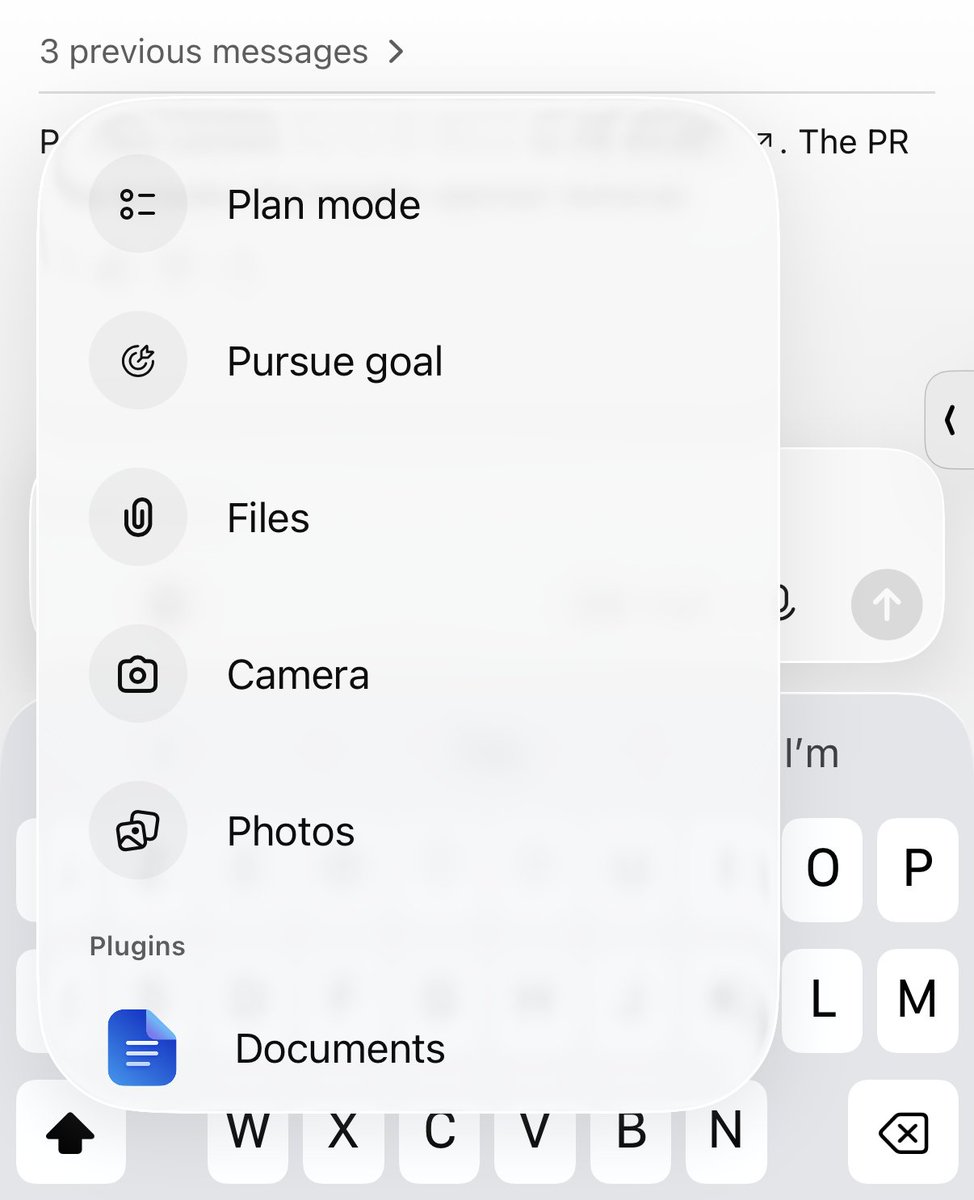
你可以附加照片、直接拍照、浏览文件、录制提示语等等。

这样说听起来可能有点傻,但只要记得你用的是手机,就会打开很多强大的工作流,尤其是在做原生移动应用或 Web 应用时。

比如我在做 ChatGPT iOS 时,只要看到问题,通常就会直接截个图,发给某个任务去快速修复。根本不用再走回电脑前。

更妙的是,如果我在家里,设备都连着同一个 Wi-Fi,我甚至可以直接在手机上构建并运行应用,现场验证某个 Codex 线程产出的结果。

你还可以先在前台开始录制一条提示,然后切到后台继续录。

我还有几个长期运行并固定住的线程,其中一个是接到 Linear tracker 的。我可以很快把任意一段文字发进去,而由于线程本身已经带着上下文,它会自动把 issue 正确地加到对应项目里,并打上合适的标签。

不离开对话就能审代码

已完成的回合可以显示改动文件摘要。你可以从那里打开 diff,检查单个文件,展开或折叠片段,让长行自动换行,也可以打开带语法高亮的源文件。你还能把行内评论附加到相关代码行上,再把这些审查上下文发回给 Codex。

这套工作流有几个层次:

  • 打开改动文件摘要,先做一次快速 sanity check。

  • 当 diff 缺少前后文时,点进完整源文件查看。

  • 添加行内评论,给出精确修改意见。

  • 用 review 命令审查本地改动,或与某个分支做比较。

  • 当你希望 Codex 专门围绕某个文件来推理时,把这个文件重新链接回聊天里。

关键不在于手机能替代大显示器去做深度代码阅读。它不能。关键在于,很多审查其实只卡在一两个决定上,而现在这些决定不必等到我回到桌前才能做。

保持同步

我们现在已经开始为 Codex Mobile 维护更新日志了。

我也经常会发帖和演示我们最新加入的功能。

更大的启发

最好的移动软件,不是把桌面界面缩小。它会识别出当你离开办公桌时,哪些决策最重要,然后让这些决策变得更快、更清楚、更安全。而我们才刚刚开始做这件事。

这就是我现在看待 Codex Mobile 的方式。它是我选择正确环境、设定目标、重定向运行、处理审批、检查结果,并让整条工程工作队列保持一致的地方。

电脑仍然负责干活。手机负责让我掌控全局。

How to turn your phone into a Codex control center??

At first glance, it looks like a way to check on a Codex task from your phone. That is useful, but it misses the bigger idea. The power of Codex Mobile is that it lets you start, direct, review, and organize work running on your development machines without pretending that a mobile device should be a tiny terminal.

Over the last month, we have added a surprising amount of depth to that loop: worktrees, goals, side chats, inline code review, queued and steering prompts, attachments, skills and plugins, archived threads, and a long tail of small details that make the app useful for serious work.

This is the field guide I wish every new power user had. This is various notes, tips and tricks I collected over my 2 months at OpenAI and how I work with Codex and especially Codex Mobile.

怎样把手机变成 Codex 的控制中心?

乍一看,它像是让你用手机查看 Codex 任务进展的方式。这当然有用,但它错过了更大的意义。Codex Mobile 的真正力量在于,它让你可以启动、指挥、审查并组织那些运行在开发机器上的工作,而不是假装移动设备应该变成一个缩水版终端。

在过去一个月里,我们给这条工作链路加入了出人意料的深度:worktrees、goals、side chats、行内代码审查、排队与引导式提示、附件、skills 和 plugins、归档线程,以及一长串让这个应用真正适合严肃工作的细节。

这是我希望每位新晋重度用户都能拥有的实战指南。这篇文章整理了我在 OpenAI 两个月里积累的各种笔记、技巧和心得,内容围绕我如何使用 Codex,尤其是 Codex Mobile。

The right mental model: your phone is the control center

The task, codex run and the code still runs where it belongs: on your Mac, Windows machine, devbox, or other connected host. Codex Mobile gives you a native interface for controlling that work.

You can setup as a host any macOS or Windows machine that can run the Codex Desktop app or the Codex CLI, more information on how to setup on our documentation page: https://developers.openai.com/codex/remote-connections

正确的心智模型:你的手机就是控制中心

任务、codex run 以及代码本身,仍然运行在它们该运行的地方:你的 Mac、Windows 机器、devbox,或其他已连接的主机上。Codex Mobile 提供的是一个原生界面,用来控制这些工作。

任何能运行 Codex Desktop 应用或 Codex CLI 的 macOS 或 Windows 机器,都可以被配置为 host。关于如何设置的更多信息,请看我们的文档页面:https://developers.openai.com/codex/remote-connections

Start the task with the right boundaries

Good agent work starts with a correctly scoped environment. Codex Mobile lets you choose the connected host and workspace before the first prompt. For a new thread, you can also choose a branch, create a separate worktree, and run the environment setup associated with it.

That makes a few useful patterns possible, right from your phone:

  • Use the current checkout for a quick investigation.

  • Create a new worktree for a change that should stay isolated.

  • Start from the intended base branch instead of fixing Git state later.

  • Let the environment setup run before asking Codex to build or test.

Yes that's right, as of our latest version, you can now access the same environment scripts that you setup in your desktop Codex app on mobile. Meaning if you create a worktree, you'll see the environment listed and this script will be executed once the worktree is created.

Environments is a powerful feature of the Codex desktop app, you can read more about it here: https://developers.openai.com/codex/app/local-environments

Note: You can't yet edit those scripts from Codex Mobile

用合适的边界启动任务

好的 agent 工作,始于边界清晰的环境。Codex Mobile 让你在输入第一条提示前,就可以先选好连接的 host 和 workspace。新建线程时,你还可以选择分支、创建独立 worktree,并运行与其关联的环境设置。

这让几种很实用的模式可以直接在手机上完成:

  • 用当前 checkout 做一次快速排查。

  • 为需要隔离的修改创建新的 worktree。

  • 从预期的基础分支开始,而不是事后再修 Git 状态。

  • 先跑完环境设置,再让 Codex 去构建或测试。

没错,就在最新版本里,你现在已经可以在移动端访问那些你在桌面版 Codex 应用中配置好的环境脚本。这意味着,如果你创建了一个 worktree,就会看到对应环境被列出来,而这个脚本会在 worktree 创建完成后执行。

Environments 是 Codex 桌面应用里一个很强大的功能。更多介绍见这里:https://developers.openai.com/codex/app/local-environments

注意:你目前还不能在 Codex Mobile 里编辑这些脚本

Use side chats as a branch of thought

https://developers.openai.com/codex/changelog?type=codex-mobile

Long-running coding threads accumulate valuable context. Interrupting one with every side question makes the main transcript noisy and can pull the agent away from the objective.

That is what side chats solve.

Use /side to open a lightweight conversation connected to the current thread. Use /side <prompt> to open it with a question already prepared. Even better, select text in the transcript and choose Ask in side chat. The selected passage becomes the starting context for the new conversation.

I use side chats for questions such as:

  • Why did Codex choose this architecture?

  • What does this error actually mean?

  • Is this behavior consistent with the desktop app?

  • Give me a release-note version of this implementation detail.

  • What should I verify before I approve this command?

The distinction is useful: the main thread owns the work; the side chat helps me understand the work.

This work on both the desktop and mobile apps, we're still refining the UX around them as we learn more about our and your use of them.

把 side chats 当成思路分支

https://developers.openai.com/codex/changelog?type=codex-mobile

长时间运行的编码线程会积累很有价值的上下文。如果每个支线问题都插进主线程,主对话记录会变得嘈杂,也会把 agent 从核心目标上拉走。

这正是 side chats 要解决的问题。

/side 可以打开一个与当前线程关联的轻量对话。用 /side <prompt> 则可以带着预先写好的问题直接打开。更好的是,你可以在对话记录里选中文本,然后选择 Ask in side chat。被选中的那段内容会成为新对话的起始上下文。

我会把 side chats 用在这些问题上:

  • Codex 为什么选择这个架构?

  • 这个错误实际是什么意思?

  • 这种行为和桌面应用一致吗?

  • 把这个实现细节改写成 release note 风格的说明。

  • 在我批准这条命令之前,应该验证什么?

这个区分很有用:主线程负责推进工作,side chat 帮我理解这项工作。

这个能力在桌面端和移动端都可用。随着我们更了解自己以及你们是怎么使用它的,我们也还在持续打磨它们的交互体验。

Use Plan for the path and Goal for the outcome

The mobile app come with full featured /goal and /plan supports, the app will shows you the plan tool questions and also the UI for /goal where you can see for how long it's been running, edit, pause it, etc...

Plan mode and goals solve different problems.

Plan mode asks Codex to propose the implementation path before changing code. It is useful when the task is underspecified, risky, or likely to touch several systems.

A goal is durable. It tells Codex what outcome to keep pursuing across turns. On mobile, /goal can create and manage that objective, while progress remains visible as the work continues.

A practical pattern is:

  1. Start with Plan mode for a risky change.

  2. Inspect the proposed boundaries.

  3. Turn the accepted outcome into a goal when the work will require multiple iterations.

  4. Let Codex continue through implementation, tests, review feedback, and cleanup without restating the objective every time.

But to tell you the truth, most of the time you don't even need to use plan mode directly. Just talk to Codex for a while about a given problem and once you're happy about the implementation details, ask Codex to set it as a goal.

Codex is better than us at writing goal, so it's often a good idea to let it write them for you.

Plans answer “how should we approach this?” Goals answer “what must be true before we are done?”

The important thing to remember when using goal: set a verifiable end state that is not too broad. If you tell Codex "do it 100% like x or Y" it'll probably often wants to go too far and waste some tokens.

But now that you can oversee your tokens from your phone, this is not a big problem anymore, right?

用 Plan 确定路径,用 Goal 锁定结果

移动应用已经完整支持 /goal/plan,应用会向你展示 plan tool 的问题,也会提供 /goal 的界面,你可以看到它已经运行了多久,还能编辑、暂停等等。

Plan mode 和 goal 解决的是不同的问题。

Plan mode 会让 Codex 在改代码之前先提出实现路径。当任务定义不够完整、风险较高,或很可能会涉及多个系统时,它就特别有用。

Goal 则更持久。它告诉 Codex,在多个回合中应持续追求什么结果。在移动端,/goal 可以创建并管理这个目标,同时在工作继续推进时,进度也会持续可见。

一个实用模式是:

  1. 先用 Plan mode 处理高风险改动。

  2. 检查它提出的边界。

  3. 如果这项工作需要多轮迭代,就把确认后的结果转成一个 goal。

  4. 让 Codex 持续完成实现、测试、审查反馈处理和收尾,而不必每次都重新描述目标。

不过说实话,大多数时候你甚至不需要直接用 plan mode。只要先和 Codex 围绕某个问题聊一会,等实现细节讨论清楚后,再让 Codex 把它设成一个 goal 就行。

Codex 比我们更擅长写 goal,所以很多时候让它替你来写,反而是个好主意。

Plan 回答的是 我们该怎么接近这个问题。Goal 回答的是 在我们完成之前,什么必须是真的。

使用 goal 时最重要的一点是,设定一个可验证、但不要过宽的结束状态。如果你告诉 Codex 按照 x 或 y 百分之百做到,它往往会走得太远,白白浪费一些 tokens。

不过现在你已经能在手机上盯住 token 消耗了,所以这也不再是什么大问题,对吧?

It's YOUR phone!

One of the things you might forget is that you're working from your phone. And we built in the composer all the tools you need to access your local phone data!

You can attach a photo, take a picture, browse your files, record a prompt, and more!

This might seem stupid to put that way, but remembering you're on your phone unlocks a lot of powerful flows, especially if you're working on a mobile native or web app.

For example, while working on ChatGPT iOS, whenever I see an issue, I often directly take a screenshot and send it to a task for a quick fix. I don't have to walk back on my computer, etc...

Even better, if I'm at home, on the same Wi-Fi, I can build & run the app directly on my device to test the outcome of a Codex thread directly.

Another thing you can do is start a prompt recording in the foreground and continue it in the background!

I also have a few long running pinned threads, one if a Linear tracker where I can quickly send any piece of text and because of the thread current context, it'll correctly add and tag the issue with the right project and labels.

这是你的手机

有件事你可能会忘记,那就是你现在是在用手机工作。而我们已经把访问本地手机数据所需的工具都做进了输入区里。

你可以附加照片、直接拍照、浏览文件、录制提示语等等。

这样说听起来可能有点傻,但只要记得你用的是手机,就会打开很多强大的工作流,尤其是在做原生移动应用或 Web 应用时。

比如我在做 ChatGPT iOS 时,只要看到问题,通常就会直接截个图,发给某个任务去快速修复。根本不用再走回电脑前。

更妙的是,如果我在家里,设备都连着同一个 Wi-Fi,我甚至可以直接在手机上构建并运行应用,现场验证某个 Codex 线程产出的结果。

你还可以先在前台开始录制一条提示,然后切到后台继续录。

我还有几个长期运行并固定住的线程,其中一个是接到 Linear tracker 的。我可以很快把任意一段文字发进去,而由于线程本身已经带着上下文,它会自动把 issue 正确地加到对应项目里,并打上合适的标签。

Review code without leaving the conversation

Completed turns can show a summary of changed files. From there you can open the diff, inspect individual files, expand or collapse sections, wrap long lines, and open a source file with syntax highlighting. You can attach inline comments to the relevant lines and send that review context back to Codex.

There are several levels to the workflow:

  • Open the changed-file summary for a quick sanity check.

  • Tap through to the full source when a diff lacks surrounding context.

  • Add inline comments for precise corrections.

  • Use the review command to review local changes or compare against a branch.

  • Link a file back into the chat when you want Codex to reason about that file specifically.

The important point is not that a phone replaces a large monitor for deep code reading. It does not. The point is that many reviews are blocked on one or two decisions, and those decisions no longer need to wait until I am back at my desk.

不离开对话就能审代码

已完成的回合可以显示改动文件摘要。你可以从那里打开 diff,检查单个文件,展开或折叠片段,让长行自动换行,也可以打开带语法高亮的源文件。你还能把行内评论附加到相关代码行上,再把这些审查上下文发回给 Codex。

这套工作流有几个层次:

  • 打开改动文件摘要,先做一次快速 sanity check。

  • 当 diff 缺少前后文时,点进完整源文件查看。

  • 添加行内评论,给出精确修改意见。

  • 用 review 命令审查本地改动,或与某个分支做比较。

  • 当你希望 Codex 专门围绕某个文件来推理时,把这个文件重新链接回聊天里。

关键不在于手机能替代大显示器去做深度代码阅读。它不能。关键在于,很多审查其实只卡在一两个决定上,而现在这些决定不必等到我回到桌前才能做。

Staying up to date

We're now keeping a changelog for the latest updates for Codex Mobile.

I also often post and demo our latest added features!

保持同步

我们现在已经开始为 Codex Mobile 维护更新日志了。

我也经常会发帖和演示我们最新加入的功能。

The larger lesson

The best mobile software does not shrink a desktop interface. It identifies the decisions that matter when you are away from the desk and makes those decisions fast, legible, and safe. And we're just getting started on that!

That is how I think about Codex Mobile now. It is where I can choose the right environment, set the objective, redirect a run, answer an approval, inspect the result, and keep the whole queue of engineering work coherent.

The computer still does the work. The phone keeps me in control.

更大的启发

最好的移动软件,不是把桌面界面缩小。它会识别出当你离开办公桌时,哪些决策最重要,然后让这些决策变得更快、更清楚、更安全。而我们才刚刚开始做这件事。

这就是我现在看待 Codex Mobile 的方式。它是我选择正确环境、设定目标、重定向运行、处理审批、检查结果,并让整条工程工作队列保持一致的地方。

电脑仍然负责干活。手机负责让我掌控全局。

How to turn your phone into a Codex control center??

At first glance, it looks like a way to check on a Codex task from your phone. That is useful, but it misses the bigger idea. The power of Codex Mobile is that it lets you start, direct, review, and organize work running on your development machines without pretending that a mobile device should be a tiny terminal.

Over the last month, we have added a surprising amount of depth to that loop: worktrees, goals, side chats, inline code review, queued and steering prompts, attachments, skills and plugins, archived threads, and a long tail of small details that make the app useful for serious work.

This is the field guide I wish every new power user had. This is various notes, tips and tricks I collected over my 2 months at OpenAI and how I work with Codex and especially Codex Mobile.

The right mental model: your phone is the control center

The task, codex run and the code still runs where it belongs: on your Mac, Windows machine, devbox, or other connected host. Codex Mobile gives you a native interface for controlling that work.

You can setup as a host any macOS or Windows machine that can run the Codex Desktop app or the Codex CLI, more information on how to setup on our documentation page: https://developers.openai.com/codex/remote-connections

Start the task with the right boundaries

Good agent work starts with a correctly scoped environment. Codex Mobile lets you choose the connected host and workspace before the first prompt. For a new thread, you can also choose a branch, create a separate worktree, and run the environment setup associated with it.

That makes a few useful patterns possible, right from your phone:

  • Use the current checkout for a quick investigation.

  • Create a new worktree for a change that should stay isolated.

  • Start from the intended base branch instead of fixing Git state later.

  • Let the environment setup run before asking Codex to build or test.

Yes that's right, as of our latest version, you can now access the same environment scripts that you setup in your desktop Codex app on mobile. Meaning if you create a worktree, you'll see the environment listed and this script will be executed once the worktree is created.

Environments is a powerful feature of the Codex desktop app, you can read more about it here: https://developers.openai.com/codex/app/local-environments

Note: You can't yet edit those scripts from Codex Mobile

Use side chats as a branch of thought

https://developers.openai.com/codex/changelog?type=codex-mobile

Long-running coding threads accumulate valuable context. Interrupting one with every side question makes the main transcript noisy and can pull the agent away from the objective.

That is what side chats solve.

Use /side to open a lightweight conversation connected to the current thread. Use /side <prompt> to open it with a question already prepared. Even better, select text in the transcript and choose Ask in side chat. The selected passage becomes the starting context for the new conversation.

I use side chats for questions such as:

  • Why did Codex choose this architecture?

  • What does this error actually mean?

  • Is this behavior consistent with the desktop app?

  • Give me a release-note version of this implementation detail.

  • What should I verify before I approve this command?

The distinction is useful: the main thread owns the work; the side chat helps me understand the work.

This work on both the desktop and mobile apps, we're still refining the UX around them as we learn more about our and your use of them.

Use Plan for the path and Goal for the outcome

The mobile app come with full featured /goal and /plan supports, the app will shows you the plan tool questions and also the UI for /goal where you can see for how long it's been running, edit, pause it, etc...

Plan mode and goals solve different problems.

Plan mode asks Codex to propose the implementation path before changing code. It is useful when the task is underspecified, risky, or likely to touch several systems.

A goal is durable. It tells Codex what outcome to keep pursuing across turns. On mobile, /goal can create and manage that objective, while progress remains visible as the work continues.

A practical pattern is:

  1. Start with Plan mode for a risky change.

  2. Inspect the proposed boundaries.

  3. Turn the accepted outcome into a goal when the work will require multiple iterations.

  4. Let Codex continue through implementation, tests, review feedback, and cleanup without restating the objective every time.

But to tell you the truth, most of the time you don't even need to use plan mode directly. Just talk to Codex for a while about a given problem and once you're happy about the implementation details, ask Codex to set it as a goal.

Codex is better than us at writing goal, so it's often a good idea to let it write them for you.

Plans answer “how should we approach this?” Goals answer “what must be true before we are done?”

The important thing to remember when using goal: set a verifiable end state that is not too broad. If you tell Codex "do it 100% like x or Y" it'll probably often wants to go too far and waste some tokens.

But now that you can oversee your tokens from your phone, this is not a big problem anymore, right?

It's YOUR phone!

One of the things you might forget is that you're working from your phone. And we built in the composer all the tools you need to access your local phone data!

You can attach a photo, take a picture, browse your files, record a prompt, and more!

This might seem stupid to put that way, but remembering you're on your phone unlocks a lot of powerful flows, especially if you're working on a mobile native or web app.

For example, while working on ChatGPT iOS, whenever I see an issue, I often directly take a screenshot and send it to a task for a quick fix. I don't have to walk back on my computer, etc...

Even better, if I'm at home, on the same Wi-Fi, I can build & run the app directly on my device to test the outcome of a Codex thread directly.

Another thing you can do is start a prompt recording in the foreground and continue it in the background!

I also have a few long running pinned threads, one if a Linear tracker where I can quickly send any piece of text and because of the thread current context, it'll correctly add and tag the issue with the right project and labels.

Review code without leaving the conversation

Completed turns can show a summary of changed files. From there you can open the diff, inspect individual files, expand or collapse sections, wrap long lines, and open a source file with syntax highlighting. You can attach inline comments to the relevant lines and send that review context back to Codex.

There are several levels to the workflow:

  • Open the changed-file summary for a quick sanity check.

  • Tap through to the full source when a diff lacks surrounding context.

  • Add inline comments for precise corrections.

  • Use the review command to review local changes or compare against a branch.

  • Link a file back into the chat when you want Codex to reason about that file specifically.

The important point is not that a phone replaces a large monitor for deep code reading. It does not. The point is that many reviews are blocked on one or two decisions, and those decisions no longer need to wait until I am back at my desk.

Staying up to date

We're now keeping a changelog for the latest updates for Codex Mobile.
I also often post and demo our latest added features!

The larger lesson

The best mobile software does not shrink a desktop interface. It identifies the decisions that matter when you are away from the desk and makes those decisions fast, legible, and safe. And we're just getting started on that!

That is how I think about Codex Mobile now. It is where I can choose the right environment, set the objective, redirect a run, answer an approval, inspect the result, and keep the whole queue of engineering work coherent.

The computer still does the work. The phone keeps me in control.

📋 讨论归档

讨论进行中…