返回列表
🧠 阿头学 · 💬 讨论题

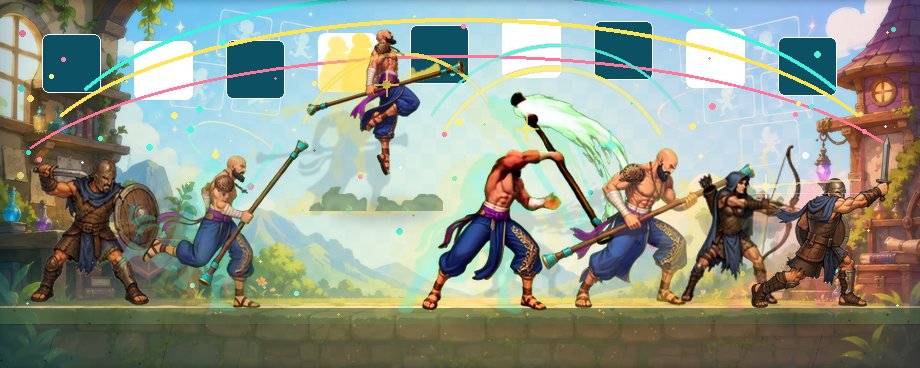
AI 做游戏 2D 动画的可行解,不是直出 Sprite Sheet,而是“首帧图像 + 视频补运动 + 脚本收尾”

这篇文章最有价值的判断是:现阶段 AI 直接生成可用于游戏的 2D sprite sheet 并不可靠,但把图像模型当“造型器”、视频模型当“运动器”、脚本当“标准化工人”,这条组合式流程已经接近可用生产力,不过标题里“任何动画”明显说大了。
打开原文 ↗

2026-05-02 原文链接 ↗
阅读简报
双语对照
完整翻译
原文
讨论归档

核心观点

  • 问题不在画得像,而在能否守规矩 作者抓得很准:游戏里的 sprite sheet 不是“看着像动画”就够,而是必须满足固定帧网格、角色稳定居中、透明背景、无抖动、可程序读取这些硬约束;在这个标准下,图像模型最大的短板不是审美,而是规则服从性差。
  • 模型分工比单模型死磕更有效 作者的关键突破是承认图像模型不擅长连续运动,尤其不擅长腿部步态和动作节奏,于是改成“图像模型出首帧/过渡姿势,视频模型生成运动,再抽帧清理”;这个拆分是有洞察的,因为它顺着模型能力边界做任务设计,而不是幻想一个模型包打天下。
  • 最站得住的工程原则是 preserve-canvas 文中最值钱的经验不是某个提示词,而是“保留完整源画布,不要逐帧裁切、逐帧居中、逐帧底边对齐”;这个判断非常硬,因为逐帧对齐看似在修正,实际上经常会制造假运动和抖动。
  • 这不是全自动流水线,而是半自动审查流程 作者虽然用了很多 agent、脚本、CLI 和目录结构,但真正决定质量的环节仍然是人工:选关键帧、检查 contact sheet、判断 motion-pop、决定是否桥接或重跑;这说明它更像“把最烦的 80% 自动化”,而不是“已经实现全自动生产”。
  • 文章的方法有用,但适用边界被弱化了 这套流程明显更适合固定镜头、单角色、动作清晰、背景可控、风格统一要求中等的 2D 动画;对复杂镜头、大量交互特效、强风格一致性、严肃商业美术管线,它并没有证明自己足够稳。

跟我们的关联

  • 对 ATou 意味着什么:这篇文章说明,做 AI 产品别再迷信“端到端自动生成”,更有价值的是把生成模型嵌进确定性流程里;下一步可以把这个思路迁移到内容生产、营销素材、设计协作里,优先做“生成 + 校验 + 人审”的产品结构。
  • 对 Neta 意味着什么:如果你在看 AI agent 的落地边界,这篇材料提供了一个典型范式——高熵部分交给模型,低熵部分交给脚本和规则;下一步可以把它抽象成通用框架:Structure → Motion → Cleanup → Audit。
  • 对 Uota 意味着什么:如果关心创作工具或独立开发,这说明低成本做“能跑的资产”已经开始可行,但“高品质、稳定、可量产”还远没解决;下一步可以用这套标准反看其他 AI 创作工具,到底是在做 demo,还是在做可接生产链的东西。
  • 对投资判断意味着什么:真正有价值的不是再堆一个生成模型,而是把模型输出转成“可审计、可复现、可进现有软件栈”的工具链;下一步看项目时要重点追问成功率、返工率、人工介入比例和跨资产一致性,而不是只看生成样张。

讨论引子

1. 如果一条流程必须依赖大量人工选帧和审查,它还算“AI 提效”,还是只是把工作从绘制转移到了筛选? 2. “生成模型负责创意、脚本负责标准化”会不会比追求更强的端到端模型更现实,甚至更有商业价值? 3. 对游戏资产来说,“可直接接入引擎”是否比“单帧更惊艳”更重要,这会怎样改变我们评估 AI 工具的标准?

前言

和许多电子游戏爱好者一样,终于有一天,我再也无法抗拒本性,于是我让 Codex 给我做了个游戏。

结果在 Codex 帮我做的动画上遇到了一些问题,这就是我解决它们的方法。

如果你只是为了看流程,可以直接跳过下一节。如果你对这一路是怎么走过来的也感兴趣,不只想看终点,那就继续往下读吧。

这段历程

早在 AI 出现之前,我就已经稍微接触过游戏开发。和大多数人一样,后来我最终停在了 Unity 上,并花了几年时间和它打交道。我脑子里有过很多完全不同的游戏想法,从 point and click 冒险,到合作叙事 RPG 都有。

我试过一个人做,也试过和朋友一起做。个人时间有限确实是限制,但还不至于大到让我没法把游戏里大量系统都写出来。对我来说最大的问题是美术。

虽然我是伴着 90 年代的游戏长大的,但我一直不是像素风的粉丝,总希望自己的游戏看起来更有风格。它们不一定要站在画面前沿,但一定得有个性。

我研究过请画师,可当时就连一张概念图,对我的钱包来说都贵得离谱。我也想过自己做图。画画从来不是我的强项,不过后来发现自己在 Blender 里雕东西还挺像样。只花了 150 个小时,我就做出了一个角色。

然后我发现,这个角色根本没机会真正用进游戏里。更糟的是,就算我能搞定 mesh 的问题,这个角色做动画也难到离谱。长话短说,又一个项目废掉了。

时间快进到今天,Codex 只靠我一段话的描述,就一把生成了一个游戏。现在我知道你在想什么,你会觉得这人满嘴跑火车,根本没有什么东西能一把做出来,尤其还是游戏。你这么想也不算全错。

这个游戏的基础画面只是一些几何形状,玩起来也谈不上特别有趣,但它确实能运行。

主角能跑、能跳、能攻击,还有魔法攻击。敌人会冲向 Core,会停下来攻击玩家或者 NPC 守卫。里面有生命值、法力值、资源池、有失败条件,甚至还有战败动画。游戏里那些我们习以为常的东西,全都靠一条提示词替我做好了。

简直是天堂。剩下要做的,只不过是做几张 sprite sheet,把那些木棍石头一样的临时画面换掉。小事一桩。

呃,不,这事一点都不小。根本没那么简单。

如果你都读到这里了,大概也已经知道我卡在哪了。图像模型没法遵守严格规则。为什么这件事这么要命?因为 sprite sheet 必须按数学上严格的顺序排布,游戏引擎才能用程序逐帧读取。换句话说,它必须被切成完美一致的帧,而且角色必须始终处在每一帧的正中间。最后这一点尤其重要,不然动画播放时角色就会抖。

除此之外,背景还必须是透明的,而不是所有模型都能处理这个。

我折腾了 2 天,试了几十种提示词变体、参考网格变体,结果全都不行。我差点就放弃了。唯一让我没停手的是,我试过的一些 AI 包装工具,在做这个任务时并不总能听懂我到底想要什么动画。哪怕提示词已经被它们自己的 AI 助手清洗过,还是会冒出一些离谱到莫名其妙的结果。

好在这两个问题,也就是分帧和背景透明,其实很久以前就已经有人用程序解决过了。找到这条路之后,事情就快了。我在 AI 的帮助和指引下,弄出了几段脚本,能把图像模型产出的畸形半成品,变成一张边距干净、背景透明、扎扎实实能用的 sprite sheet。

好耶,大功告成。

并没有。又高兴早了。

凡是试过用图像模型来做 sprite sheet 帧的人,大概都知道接下来会发生什么。这些模型根本不懂怎么走路,也不懂怎么跑。它们就是搞不懂腿是怎么动的。你就算把每条腿该放在哪、脚该怎么转,讲得一清二楚,它们照样能给你弄错。哪怕是像素图也是一样。我觉得唯一勉强幸免的风格,大概只有俯视角,因为脚的位置变化只有两种。感谢神奇的 AI 科学。

这下真成死路了。我跑过的提示词已经多到数不清。我做过 10 乘 5 的 sprite sheets,然后试着从里面挑出那些看起来还能勉强连成合理动作 progression 的帧。结果没有一个真正好用。有些尝试差一点,但那根本算不上一个我愿意反复使用的流程,尤其结果还这么一般。我也不会推荐给任何人。

后来是 X 上的一条帖子救了我。有人回复一个和我遇到相似问题的人,说了一句 use kling and just extract frames。(这里是我转述的,我是两周前看到的,现在已经找不到作者和帖子了)

什么?我一开始直接把它否了。听起来像是在说拿斧子拍蚊子。但后来我认真看了看,发现这居然真是个可行方案。视频模型没有同样的腿部问题。实际上,它们在任何运动上都没这个毛病。而抽帧这件事更是早就被解决得明明白白,我甚至都不用去找工具,它自己就送上门了。更重要的是,剩下整个流程里有 99% 我其实都已经做完了。我只需要再补一个脚本,把多个文件里的帧拼起来,而这个脚本 Codex 几分钟就给我写好了。

当然,在给视频模型写提示词时,还是有几件事需要注意,得确保最终生成的视频是可用的。不过这些也不难摸清,我下面会把要点放出来。

呼,终于赢了。

这个流程跑起来的效果让我非常满意。我甚至试过把几段动画拼接在一起,效果也相当不错。虽然在新帧校验上还需要稍微调一调,但只要把这个工作流接进项目里,Codex 的表现真的非常好。

闲话不多说,希望你会喜欢下面这套流程。

流程

这是这套工作流的技术版。大部分内容是 AI 写的,我在里面穿插了一些自己的文字,用来补充提示和评论。我建议你至少把前 2 步看完,这样能明白怎么给图像模型和视频模型写提示词,才能得到最好的结果。这些规则是我经过几十轮迭代后整理出来的。你完全可以把它们丢给自己的 agent,让它把你原本很简单的提示词改写成适合这些模型的版本。第 3 步以及之后的部分,就是给你的 coding agent 用的。我已经通过多次完整跑通把它们打磨好了。复制、粘贴,让你的 agent 按照描述把脚本做出来,然后拿这些视频去跑整套流程。

文末还有一个 Tips and Tricks 小节,是写给你这个读者看的。一定记得看,最后还有一个省钱小技巧。

祝你好运,玩得开心。

1. 先做出第一个适合动画的姿势

先用图像模型做一张角色全身图,比如 GPT Image 2 或 Nano Banana 2。这个图会成为视频模型的第一帧。

使用精确的色键绿:

  • Hex: #00FF00

  • RGB: 0,255,0

背景必须是完全纯平的。不能有阴影、地面、渐变、道具、光照衰减,也不能有任何背景物体。角色设计里任何地方都不能出现这种绿色,包括衣服、宝石、魔法、描边、抗锯齿和发光。

给角色构图时,要按动画来构,而不是按肖像来构:

  • 头到脚的全身都要完整可见

  • 武器、披风、头发、松散布料和配饰都要完整可见

  • 不要裁切

  • 角色位于画面中央

  • 四周留出充足空白边距

  • 角色任何部分都不要进入最外侧 20 到 30% 的边框区域

  • 对于待机或游戏内动画,角色高度通常应占画布的 40 到 50%

这一点很重要,因为视频模型做动画时,动作幅度往往会比第一张姿势暗示的更大。如果武器、披风、手、脚、头发或者特效一开始就靠边,Kling 在动作开始后很可能直接把它们推到画面外。

除了待机以外的动画,我通常会先用图像模型做一个过渡姿势,再进入视频阶段。把基础角色参考图给图像模型,然后让它生成这个新动画的第一帧,作为一个从待机轻微过渡出去的姿势。不要一上来就要求最夸张的姿势。这样攻击、跑步、跳跃、施法、受击和落地都会更自然,不会一下子硬切进一个脱节的姿态。

对于非常简单的像素 sprite,这个过渡姿势可能是最重要的控制步骤。比如做一个小型经典 RPG 的走路循环,先生成一张 walking-pose 图,一只脚向前挪几像素,另一只脚向后,膝盖微微弯曲,武器手或盾牌手轻微上下摆动,视角不变,比例不变,背景不变。然后把这张图作为 Kling 的第一帧,再配一个简短提示词。简单画风往往需要更少的提示词工程,而不是更多。

图像提示词里应该明确写出:

  • 只有一个角色

  • 全身的 2D 游戏角色

  • 精确的起始姿势

  • 镜头或视角

  • 角色位于画面中央

  • 适合动画的安全边距

  • 武器和特效完整可见

  • 轮廓清晰易读

  • 设计稳定,四肢分离明确

  • 只有纯平的 #00FF00 背景

  • 不要文字、水印、边框、阴影、地面、道具、渐变或额外特效

生成之后,检查背景是否真的就是精确的 #00FF00。如果模型做出了柔和的绿色渐变,或者掺了接近绿色的像素,那就在把图拿去做动画之前,先把和边界连通的背景统一压成精确的 #00FF00。任何出现四肢被裁切、武器被裁切、肖像式构图、阴影、角色身上带绿色、额外道具、额外角色,或者重要像素靠边的图片,都要修掉或者直接淘汰。

2. 用 Kling 把这个姿势动起来

把图像模型的结果作为 Kling 的第一帧来用。你要得到的不是电影视频,而是一段可控的源素材,用来走 sprite 流程。

Kling 通常只给你一个提示词输入框,所以把动作描述、保持不变的规则、镜头规则、背景规则和限制条件都写进同一段可以直接复制粘贴的提示词里。不要依赖单独的负面提示词,除非你的工具确实提供了这个功能。

提示词的长度要和素材复杂度匹配。对简单图像和小型像素 sprite,最好先做一张过渡姿势图,然后在 Kling 里用简短、字面化的提示词。过长的锁定型提示词反而会给 Kling 更多可以重新诠释的空间,导致移动、旋转或者改设计。

对于简单的经典 RPG 像素 sprite,不要随便写 top-down 3/4 或 isometric,除非第一帧本来就是斜角视图。这类词会让 Kling 去旋转角色,或者让角色往别的方向走。更好的写法是:

x0=200, y0=236, x1=256, y1=256

对于更复杂的动画,Kling 的提示词可以写得更机械一些。只保留那些真的会改变像素的限制:

  • 使用上传的图片作为精确的第一帧

  • 保持角色设计、服装、比例、武器、脸部和 2D 美术风格不变

  • 用直白的人体动作语言描述可见动作

  • 镜头锁定

  • 不要缩放、平移、旋转、切镜、抖动、推拉镜头或景深位移

  • 角色始终保持在画面中央,屏幕上的尺寸不变

  • 全身、武器和特效都必须留在画面内

  • 朝向固定,不要偏航到相邻方向

  • 纯平的 #00FF00 背景,不要地面、阴影、渐变、光照变化、道具、文字、水印或动态模糊

不要含糊地描述动作。

Bad:

python tools/make_contact_sheet.py \
  --source-dir "<run-dir>/extracted/<character>/<animation>" \
  --output "<run-dir>/contact_sheets/<character>_<animation>_raw_contact.png" \
  --cols 12 \
  --cell-size 128 \
  --image-size 112

Good:

cleanup_ready_to_trash/
  <character>_<animation>/
    extracted/
    selected/
    matted/
    rejected_source_videos/

processed_source_videos/
  <character>_<animation>/
    accepted_source_video.mp4

做等距视角走路时,要注意别让提示词暗示角色沿深度方向移动。要写明是原地走,说明角色只是朝向那个方向,并明确禁止 dolly movement 和尺寸变化。对于正南向或朝下的 cardinal walk,如果 Kling 开始漂向东南或西南,就要在提示词里明确禁止这种偏航。

对于跳跃、下落和落地这类垂直动画,先把身体动作本身生成干净。落地扬尘、起跳风压以及其他垂直方向特效,最好单独作为覆盖层动画来做。脚边特效很容易让 Kling 把角色在画面里往上或往下漂。

同一张图同时拿来做第一帧和最后一帧时要小心。有时模型会把这理解成保持这张图不动,然后直接生成一个静止视频。必要时可以跳过 final-frame 输入,然后从生成出来的视频里挑一个合适的结尾帧。

如果动作本身很好,但结尾接不回待机,或者接不上下一个动画,不要一上来就整个视频重跑。先让图像模型补一张或几张桥接帧。图像迭代往往比再生成一次视频更便宜也更快。

AGENT HANDOFF

从这里开始,后面的步骤就是给你的 coding agent 用的。你可以把下面这些说明复制粘贴进项目里,让 agent 先把本地脚本搭起来,然后再拿你在第 1 步和第 2 步里做出来的视频跑完整套流程。这个工作流本地部分不涉及任何 secret 或付费 API,只有文件、Python 脚本、FFmpeg 和 Pillow。

3. 从视频里提取全分辨率帧

把这个脚本创建为 tools/extract_frames_ffmpeg.py

如果你要把这一节交给 coding agent,就让它做一个确定性的本地 Python CLI 封装,包装 ffmpegffprobe 这两个系统命令行工具,它们都来自 FFmpeg 项目,ffprobe 会随 FFmpeg 一起安装,用 Homebrew、apt、winget 或从 ffmpeg.org/download.html 安装,不要用 pip 或 npm。不要 API,不要 secret,不要托管服务。这个脚本的工作,就是把一个视频变成一个按序编号、保存全分辨率 PNG 帧的文件夹,并同时生成一份 JSON 报告。

文件夹结构你可以自己定。下面这些示例里的占位符含义如下:

  • <source-video> 表示你从视频模型里下载下来的动画视频

  • <run-dir> 表示这一次动画处理的临时工作目录,比如 work/runs/2026-04-28_mage_attack_01

  • <character> 表示角色名,比如 mage

  • <animation> 表示动画名,比如 attack_01

  • <frame-count> 通常是 12 或 24

实现约定:

  • 脚本路径是 tools/extract_frames_ffmpeg.py

  • 依赖是 Python 标准库,加系统里的 ffmpegffprobe

  • 输入是一个视频文件

  • 输出是一个按顺序排列的 PNG 帧目录

  • 默认行为是按播放顺序提取每一个解码后的源帧

  • 当提供 --fps 时,支持可选的固定 FPS 抽样

  • 当提供 --crop 时,支持可选的 FFmpeg crop 表达式

  • 输出命名格式是 frame_0001.pngframe_0002.png 等等

  • 报告路径是 <output-dir>/extraction_report.json

必需的 CLI:

final_sprites/
  <character>/
    <animation>/
      sheets/
        <character>_<animation>_12f_256.png
        <character>_<animation>_24f_256.png
      frames/
        12f_256/
          <character>_<animation>_12f_01.png
          <character>_<animation>_12f_02.png
        24f_256/
          <character>_<animation>_24f_01.png
          <character>_<animation>_24f_02.png

推荐参数:

  • --input 表示源视频路径

  • --output-dir 表示全分辨率 PNG 的目标目录

  • --fps 是可选输出 FPS,默认不填

  • --crop 是可选 FFmpeg crop 表达式,默认不填

  • --pattern 是可选输出命名格式,默认 frame_%04d.png

  • --start-number 是可选起始编号,默认是 1

  • --overwrite 允许覆盖已有的匹配帧文件

报告里应该包含:

  • 输入路径

  • 输出目录

  • 输出命名格式

  • 请求的 FPS,如果有的话

  • crop 表达式,如果有的话

  • 模式,是 source-frame-passthrough 还是 constant-fps

  • 来自 ffprobe 的源元数据,包括宽、高、帧率、时长、帧数

  • 实际提取出的帧数

  • 使用的精确 FFmpeg 命令

重要规则。不要围着角色做紧裁切。整个视频画布本身就是对齐策略的一部分。裁掉画布会改变比例,还会在不同动画之间制造假的镜头移动。如果视频某个角落有固定水印,后面在 256px 输出单元里用固定透明框把它擦掉,比直接裁掉整张画布更合适。

4. 选择要进入 sprite 动画的帧

这一步需要两个小脚本:

  • 可视化检查脚本是 tools/make_contact_sheet.py

  • 手动选帧脚本是 tools/select_frames.py

这是一个视觉检查步骤。coding agent 应该先生成 contact sheet,如果它有看图能力,就自己检查、选出明确的动作节点,然后再运行选帧脚本。如果 coding agent 看不了图,那它就应该停在这里,转而让人类从 contact sheet 里指定帧号。

contact sheet 脚本是为了让你一次看完整段视频。选帧脚本则会为最终的 12 帧和 24 帧导出,生成有序的源帧目录。

tools/make_contact_sheet.py 的实现约定:

  • 依赖是 Python 加 Pillow

  • 输入是一个提取好的图像帧目录

  • 排序要使用自然文件名排序,也就是 frame_0010.png 排在 frame_0009.png 后面

  • 输出是一张带编号的 contact sheet PNG

  • 每个单元格都应该显示该帧的缩略图和清晰可见的帧号

  • 脚本不能修改源帧

必需的 CLI:

python tools/select_frames.py \
  --source-dir "<run-dir>/extracted/<character>/<animation>" \
  --output-dir "<run-dir>/selected/<character>/<animation>/12f" \
  --indices "1,6,11,17,22,27,32,38,43,49,54,60" \
  --frame-prefix "<character>_<animation>_12f"

tools/select_frames.py 的实现约定:

  • 依赖是 Python 标准库

  • 输入是一个提取好的图像帧目录

  • 输入的 indices 使用从 1 开始的帧编号

  • 要支持逗号分隔的编号,比如 1,6,11,17

  • 要支持闭区间范围,比如 24-48

  • 输出是一个只包含被选中帧的新文件夹

  • 输出命名格式是 <frame-prefix>_0001.png<frame-prefix>_0002.png 等等

  • 报告路径是 <output-dir>/selection_report.json

  • 报告数据里要为每个输出帧写一个简短的动作节点标签或选择说明

必需的 CLI:

python tools/build_sprite_gallery_manifest.py \
  --folder "final_sprites" \
  --output "sprite_gallery_manifest.js"

选帧报告里应该包含:

  • 源目录

  • 输出目录

  • 源帧总数

  • 选中帧总数

  • 被选中的源帧编号

  • 每个输出帧和源帧之间的映射关系

  • 动作节点标签或选择说明,比如 ready、anticipation、contact、follow-through、recovery

大多数时候我会同时做 12 帧和 24 帧两个版本。12 帧 sheet 通常会直接作为游戏资产。24 帧 sheet 则适合做更平滑的参考、更慢的动作,或者带大特效的动画。

选帧不是把 idle 帧跳掉,然后对剩下的内容做均匀采样。这种做法经常会让最终的 sheet 从一个很奇怪的位置开始。正确方式是先看 contact sheet,再挑出那些能让动画作为游戏 sprite 易读的帧。

顺序如下:

  • 先选第 1 帧。它应该是可玩的起始姿势,通常是 ready stance、从 idle 轻微过渡出去的姿势,或者第一个清晰的 anticipation pose。不要从挥击中途、下落中途,或者特效已经开始之后起步

  • 第二个选最终帧。它应该是一个干净的 recovery、settle、landing,或者能顺利交回 idle 或下一个游戏状态的姿势

  • 然后在它们之间选关键动作节点。比如 anticipation、lift-off、windup、contact、apex、impact、follow-through、recoil、recovery,或者任何符合该动画的动作节点

  • 只有在这些锚点帧都选完之后,才用均匀间隔的过渡帧把空隙补上

  • 去掉那些模糊、变形、看起来重复、缺胳膊少腿、武器丢失,或者视觉顺序混乱的帧

  • 除非人类明确要求删掉特效,否则要保留 VFX 帧。起跳风、落地尘、魔法弧线和冲击烟团都属于动画节奏的一部分

  • 所有被选中的帧都要保留原始画布。选帧步骤不能裁切、重新居中、底边对齐或移动帧

对于 12 帧 sheet,先挑最清晰、最易读的关键节点,用更少的过渡帧。对于 24 帧 sheet,起始帧、结束帧和主要动作节点要和 12 帧 sheet 保持一致,然后围绕这些同样的节点补更多过渡帧。不要让 24 帧版本跑去用不同的动作窗口,除非你就是故意想做一套不同的动画。

选帧报告应该能让这一步具备可审计性。它不能只写 1,6,11,17 这种数字。如果是 coding agent 选的帧,它应该写明为什么选这些帧,比如 1 ready6 anticipation17 contact32 impact49 follow-through60 recovery。如果是人类给出的精确编号,报告里写 human-selected 也可以。

5. 除非你没能拿到干净的绿色背景,否则跳过这一步

把备用抠图脚本创建为 tools/matte_light_background.py

这个脚本只用于补救,不是常规的绿幕移除器。首选路径依然是精确的 #00FF00 色键绿,后面会在第 6 步由 tools/animation_pipeline.py 去掉。只有在源素材背景是偏白、偏灰或轻微染色,而且你没法重新生成干净版本时,才使用这个 matte 脚本。

实现约定:

  • 依赖是 Python 加 Pillow

  • 输入是一个图像帧目录

  • 输出是一个带 alpha 透明通道的新 PNG 帧目录

  • 排序使用自然文件名排序

  • 方法是从帧角落或边界像素估计背景颜色

  • 去除那些和估计背景足够接近的像素

  • 要使用柔和的 alpha 边缘,避免 sprite 边缘锯齿太重

  • 保留所有帧顺序和文件名,或者使用可预测的重命名格式

  • 报告路径是 <output-dir>/matte_report.json

必需的 CLI:

python tools/matte_light_background.py \
  --source-frames-dir "<run-dir>/extracted/<character>/<animation>" \
  --output-dir "<run-dir>/matted/<character>/<animation>" \
  --frame-prefix "<character>_<animation>_matted"

报告里应该包含:

  • 源目录

  • 输出目录

  • 帧数

  • 估计得到的背景颜色

  • tolerance 或 threshold 设置

  • 如果前景被去掉太多,要按帧给出 warning

当背景是干净的色键绿时,不要用这个。色键移除更简单、更确定,也更不容易误伤发光、布料、头发、武器高光或者魔法特效。

6. 去掉绿色背景并构建 sprite sheet

把主流程脚本创建为 tools/animation_pipeline.py。这是整条本地流程的核心。

如果你把这一步交给 coding agent,就让它做一个 Python CLI,接收选好的帧目录,移除色键绿背景,然后产出适合游戏使用的透明 sprite 单元和一整条横向 sprite sheet。

实现约定:

  • 依赖是 Python 加 Pillow

  • 输入模式 1 是 --source-frames-dir,也就是一个按顺序排列的源帧目录

  • 输入模式 2 是 --source,一个旧式的源 sprite sheet,可选

  • 输出是单独的透明 256x256 PNG 单元

  • 输出是一张横向透明 PNG sprite strip

  • 输出是一张放在棋盘格或引导背景上的预览 PNG

  • 输出是一份 JSON 校验报告

  • 排序使用自然文件名排序

  • 默认帧尺寸是 256

  • 默认背景模式是 chroma

  • 默认色键颜色是 #00FF00

12 帧导出的必需 CLI:

fast overhead sword slash

24 帧导出时再跑一次同样的命令,把 12f 改成 24f,把 --frames 12 改成 --frames 24,并指向 24 帧版本的选中源帧目录。

脚本应该支持以下背景模式:

  • chroma,移除精确或接近 #00FF00 的背景,并清理绿色溢边

  • alpha,保留已有透明度,并跳过色键移除

对于色键移除,coding agent 应该直接用 Pillow 的像素处理来实现。把每一帧转成 RGBA。对每个非透明像素,如果它恰好是 #00FF00,或者在某个 tolerance 范围内接近这个颜色,就把 alpha 设为 0。还要额外抓住那些背景溢出的强绿色像素,可以用类似这种规则,green 很高,red 和 blue 很低,而且 green 明显大于 red 和 blue。对于那些没有被删掉、但仍有绿色溢边的边缘像素,不要把它们设成透明,而是把 green 通道往 redblue 较大的那个值收缩。这里一定要保守,不要因为像素里带一点绿色就直接删掉,不然很容易把青色武器尖端、绿色宝石、魔法特效或者服装抗锯齿细节一起毁掉。

脚本还应该支持以下布局模式:

  • preserve-canvas,把整个源视频画布缩放到每个 256x256 单元中

  • fit-foreground,可选的旧式补救模式,围绕前景裁切再重新居中。不要把它用在视频生成的动画上

对于视频生成的动画,要用 preserve-canvas。这部分最重要。不要对每个姿势单独裁切。不要对每个姿势单独重新居中。那样会制造假的镜头移动。在 preserve-canvas 模式里,每一帧都使用同样的源画布尺寸、同样的缩放比例和同样的粘贴位置。如果源视频是 960x960,那么每一帧都应该从完整的 960x960 画布缩放进 256x256 单元。

preserve-canvas 之后,不要再做第二轮逐帧对齐。在这个工作流里,256x256 单元代表的是固定不动的视频镜头。角色、双脚、尘土、风、披风、武器,以及起跳和落地特效,都必须保留它们在这个镜头中的原始位置。脚本不能把各帧拉去对齐同一条底边、同一条地平线、同一个包围盒中心,或者同一个最低 alpha 像素。那样会制造人为运动,还会把跳跃和落地帧强行钉到底部。

参考网格不属于这一步本地处理的内容。完整的源视频画布本身就是参考。如果源视频里角色在固定镜头中出现不想要的身体漂移,那就回到视频提示词层面去修,重新生成一段镜头锁定、角色居中、边距足够的视频。不要在清理脚本里通过平移单个 sprite 单元来修这个问题。游戏引擎里的原点可以稍后在引擎或导入设置中定义,不应该在这条 sprite-sheet 流水线里直接改像素。

处理顺序应该是:

  • 按自然顺序加载源帧

  • 如果 --background-mode chroma,先移除色键绿

  • 清理绿色溢边,但不要破坏青色或绿色的武器细节

  • 去掉极小的孤立噪点连通块

  • 如果 --layout-mode preserve-canvas,把整张源画布缩放进固定输出单元

  • 如果 --layout-mode fit-foreground,围绕可见前景裁切,并对齐到一致锚点

  • 写出单独的 256x256 单元

  • 把这些单元拼成一条横向 strip

  • 写出带棋盘背景的预览图

  • 写出报告

报告里应该包含:

  • 状态,是 pass 还是 fail

  • errors

  • warnings

  • 帧数

  • 帧尺寸

  • sheet 尺寸

  • 源路径

  • 输出路径

  • 使用的缩放比例

  • 布局模式

  • 每一帧的源画布尺寸

  • 每一帧的缩放后画布尺寸

  • 每一帧的粘贴位置

  • 每一帧最终的 bounding box

  • 源图边缘 alpha 计数

  • 相邻帧之间的 silhouette 差异

  • 可能重复的帧

  • 可能突兀跳动的动作

  • 可能的裁切或边缘接触

  • 帧高宽波动

预期输出尺寸:

  • 12 帧,每帧 256x256,整张 sheet 应为 3072x256

  • 24 帧,每帧 256x256,整张 sheet 应为 6144x256

可选的水印清理:

有些视频工具会在右下角加一个很小的固定 logo。色键移除无法把它删掉,因为它是前景颜色的真实文字。可以额外加一个小型清理辅助,或者一个 CLI 标志,在每个最终的 256x256 单元内部清掉一个固定的透明矩形区域。对于 256x256 单元,一个常见的右下角 logo 区域大致是:

Use the uploaded image as the exact first frame.
Animate a tiny retro RPG sprite marching in place.

Keep the character pinned to the center of the screen.
Keep the same front-facing view for the entire clip.
The character must not turn, rotate, face diagonally, face sideways,
move forward, move backward, or move across the screen.

Only animate a simple two-step pose cycle:
the feet alternate a few pixels, the knees bend slightly,
and the weapon arm and off-hand/shield arm bob slightly.

Keep the head, chest, body angle, equipment sides, size, colors,
and pixel-art design the same.

Locked camera.
Flat #00FF00 green background stays unchanged.
No shadows, no floor, no effects, no blur, no new details, no redesign.

只有当水印确实存在时才用,而且要先确认这个角落里没有真实的武器、身体部位或特效需要保留。这样做比裁掉整个源视频安全,因为它不会改变动画画布。

7. 在把结果拷进游戏资产之前,先检查输出

不要直接发布原始抽帧。只有通过检查的输出,才应该被提升为正式资产。

校验清单:

  • 报告状态是 pass

  • sheet 尺寸必须精确等于 frame_count * 256 乘以 256

  • 源画布在所有帧之间保持稳定

  • preserve-canvas 的报告里,每一帧的 scale、scaled canvas 和 paste location 都必须一致

  • 没有应用任何逐帧底边对齐、地平线对齐、包围盒重新居中或最低 alpha 对齐

  • 作为 strip 或动画查看时,帧顺序感觉正确

  • 没有武器、四肢、布料、头发、披风或特效被流程意外裁掉

  • 看起来重复的帧都是有意保留的停顿帧

  • 所有 motion-pop warning 都已经做过人工检查

  • 所有 edge-contact warning 都已经和原始视频核对过

  • 角色表观比例和同一角色集里的其他动画一致

  • 如果源素材有右下角水印或 logo,相关像素已经被清掉

对 edge-contact warning 要有判断。比如原始源视频里,法杖、羽饰或者魔法弧线本来就碰到了 960x960 的边框,报告自然应该提示你。这不一定代表流程失败,只能说明源内容已经碰到了源画布边缘。如果流程使用的是 preserve-canvas,而且没有裁切源画布,那它就不可能凭空恢复视频模型从来没生成出来的像素。

推荐的正式产出目录结构:

Use the uploaded image as the exact first frame.
Create an overhead sword attack.

The character makes a small weight shift,
raises the sword overhead,
pauses briefly in anticipation,
steps forward slightly,
strikes downward,
follows through,
then returns toward the ready stance.

Keep the camera locked,
the character centered,
the full body and sword inside the frame,
and the flat #00FF00 background unchanged.

提升正式资产这一步,本质上只是把审查通过的 sheet PNG 和对应单元 PNG 复制到最终目录里。同时也把清理和工作目录保留下来。以后要看原始帧、选帧报告、流程报告,或者想换一组帧重生成一张 sheet,它们都很有用。

8. 重新构建本地预览图库

把 viewer manifest 脚本创建为 tools/build_sprite_gallery_manifest.py

这个静态查看器不会在运行时扫描文件系统。它依赖一份生成好的 JavaScript manifest。每次正式提升资产后,都要重新生成这份 manifest。

实现约定:

  • 依赖是 Python 标准库,加 Pillow 用来读取图片尺寸

  • 输入是正式 sprite 文件夹,比如 final_sprites/

  • 跳过单独的帧目录

  • 只包含正式提升后的 sheet 图片

  • 为每张 sheet 收集元数据

  • 按最新输出优先排序

  • 写出一个供 sprite_viewer.html 使用的 JavaScript 文件

  • 默认输出是 sprite_gallery_manifest.js

必需的 CLI:

python tools/animation_pipeline.py \
  --source-frames-dir "<run-dir>/selected/<character>/<animation>/12f" \
  --frames 12 \
  --output "<run-dir>/sheets/<character>/<animation>/<character>_<animation>_12f_256.png" \
  --preview "<run-dir>/previews/<character>/<animation>/<character>_<animation>_12f_256_preview.png" \
  --frames-dir "<run-dir>/frames/<character>/<animation>/12f_256" \
  --report "<run-dir>/reports/<character>/<animation>/<character>_<animation>_12f_256_report.json" \
  --background-mode chroma \
  --layout-mode preserve-canvas \
  --frame-prefix "<character>_<animation>_12f"

manifest 条目里应该包含:

  • label

  • relative path

  • containing folder

  • project 或 game 名称,可选

  • character

  • animation

  • width

  • height

  • byte size

  • modified timestamp

生成出的文件可以很简单:

window.SPRITE_LATEST_LIMIT = 10; window.SPRITE_SHEETS = [ { "label": "mage_attack_01_24f_256", "path": "final_sprites/mage/attack_01/sheets/mage_attack_01_24f_256.png", "character": "mage", "animation": "attack_01", "width": 6144, "height": 256 } ];

我非常建议你让 coding agent 顺手做一个很小的静态 HTML 查看器,比如 sprite_viewer.html。它不是游戏的一部分,只是一个本地检查工具,但在把结果接进引擎之前,它能让不同输出之间的对比轻松很多。

尽量保持简单。一个好用的查看器应该能:

  • 加载 sprite_gallery_manifest.js

  • 把最新的 sheet 排在前面

  • 如果你用了 project 或 game 字段,就支持按它、按 character、按 animation 过滤

  • 显示完整的已选 sheet

  • 通过逐格播放固定宽度单元,把整张 sheet 作为动画播出来

  • 允许切换常见 FPS 值

  • 显示基础元数据,比如帧数、单元尺寸、sheet 尺寸、文件路径

  • 使用棋盘格或深色背景,让透明度问题更容易看出来

9. 把临时文件归拢起来,等手动清理

这一步很推荐,因为全分辨率抽出来的 PNG 帧会占掉不少磁盘空间。单个动画还好,但完整角色集积累起来会非常快。

不要让 coding agent 直接删文件。删除本地文件这种动作,最好还是由人来做最终确认,更安全。

更好的做法是让 coding agent 把那些体积大的临时目录移动到一个名字很明确的清理目录里。你确认最终 sprite 已经安全提升之后,再自己把那个目录扔进回收站。

如果你有一个类似 To be processed 的 intake 文件夹,把它当收件箱,不要当存储区。一个视频只要已经完成抽帧、选帧、处理、审核,并且已经被提升为正式资产或者判定废弃,就该把它从 intake 文件夹里移走。不然下次运行时可能会把同一个视频又处理一遍。

推荐模式:

python tools/extract_frames_ffmpeg.py \
  --input "<source-video>" \
  --output-dir "<run-dir>/extracted/<character>/<animation>" \
  --overwrite

通常在最终检查后,可以放心移进清理区的内容有:

  • 全分辨率抽帧目录

  • 选帧中间目录

  • 备用抠图帧目录,如果用过

  • 失败尝试留下的旧 rerun 目录

  • 你确定不会再用的废弃源视频

通常值得保留的内容有:

  • 最终正式提升后的 sheet 和帧单元

  • contact sheet,如果你想保留选帧记录

  • JSON 报告,如果你想保留可复现性或调试线索

  • 已接受的源视频,把它们移出 intake 文件夹,放进 processed_source_videos/,至少留到你完全确定这个动画已经定稿

可选项,缩放最终完成的 sprite sheet

如果你需要更小尺寸的导出,创建 tools/resize_sprite_sheet.py

如果有人打算用 AI coding model 复刻这一步,这个脚本应该能把一张横向 sprite sheet 从一种固定单元尺寸缩放到另一种固定单元尺寸,同时保留帧数,校验源尺寸是否符合预期单元大小,并在输出文件旁边写一份缩放报告。

整个流程就是这样。第一帧姿势用 GPT Image 2.0 或 Nano Banana 2,动作部分交给 Kling,然后用本地脚本完成抽帧、检查、清理、校验,以及最终的 sprite-sheet 打包。

提示和经验

这些都是这套流程里积累出来的实战经验,我集中放在这里。

  • 第一张姿势图的构图要按动画需求来,不要按肖像图来。全身、武器、披风、头发和松散布料都要完整留在画面里,而且四周要有充足空白边距。

  • 视频模型做出来的动作幅度,往往会比第一张姿势暗示的更大。如果武器、披风、手、脚或特效一开始就靠边,动作一开始它们就可能跑出画面。

  • 对大多数非待机动画,起始帧最好是一个过渡姿势,而不是最夸张的动作姿势。一个从 idle 轻微偏移出来的姿势,通常在游戏里衔接更自然。用图像模型从 idle 帧,或者前一个动画的结束帧,来生成这个姿势。

  • 给视频模型写提示词时尽量机械化。把确切顺序写明白,anticipation、action、follow-through、recovery。不要写像 fast sword attack 这种模糊提示词。

  • 镜头一定要锁住。明确要求 no zoom、no pan、no rotation、no cuts、no camera shake,也不要在屏幕上横向移动。

  • 动画尽量控制在 12 到 24 帧左右还能保持清晰可读。动作应该一帧一帧明显推进,不能有传送感、抽跳感,也不能跳过关键姿势。

  • 对跳跃、下落和落地这类垂直动画要特别小心。先把身体动作本身做干净。落地扬尘、起跳风压和其他垂直特效,最好另外做成独立的叠加特效动画。

  • 非垂直特效通常更安全。比如攻击时拖出的魔法尾迹,就比脚边特效更不容易引发烦人的角色漂移。

  • 同一张图同时作为视频的第一帧和最后一帧,有时会让模型输出静止视频。虽然不常见,但如果真遇到了,就跳过 final-frame 输入,改为从生成视频里挑一个合适的结束帧。

  • 如果最终姿势本身不错,但接回 idle 或接到下一个动画时不够顺,用图像生成补一张或几张桥接帧,通常比整段视频重跑更便宜。

  • 如果从 sprite sheet 播放出来的最终动画像是卡住了,检查最后几帧。它们经常和开头几帧太像,于是整段动画看起来像卡住一样。可以从最后那几帧里挑出你觉得最适合接回第一帧的一张,让你的 AI 把剩下的去掉。这条流程里它已经有足够的工具,很容易做。

  • 如果你很满意当前动画,但结束帧离 idle 动画差得太远,可以让模型生成一张适合放在动画 A 结束帧和动画 B 第一帧之间的图。也可以让它生成几张。效果通常很好,虽然不是每次都完美,所以可能还是得多要几轮。但现在 image gen 已经便宜得离谱了,比重新跑视频提示词划算得多。

  • 如果你想省钱,其实大多数动画也可以只用图像模型来做。这个过程会更折磨人,但确实可行。方法是,让这个项目里的 code agent 先按你想要的帧数做一个参考网格。再让它为图像模型写一段动画 sprite sheet 提示词,记得明确告诉它这是给图像模型用的。然后把结果给它。它已经具备把 sprite sheet 里的帧正确提取、排列和清理的工具,会据此做相应处理。

Preface

前言

Like a lot of the video game enthusiasts, there came a time when I could no longer resist my nature and I prompted Codex to make me a game.

和许多电子游戏爱好者一样,终于有一天,我再也无法抗拒本性,于是我让 Codex 给我做了个游戏。

I ran into some issues with animations Codex made for me and this is how I solved them.

结果在 Codex 帮我做的动画上遇到了一些问题,这就是我解决它们的方法。

If you are here just for the pipeline, feel free to skip the next section. If you're interested in the journey and not only in the destination, read on!

如果你只是为了看流程,可以直接跳过下一节。如果你对这一路是怎么走过来的也感兴趣,不只想看终点,那就继续往下读吧。

The Journey

这段历程

Long before AI existed, I dipped my toe into game dev. Like most, I eventually settled in Unity and spent a few years working with it. I had multiple ideas for completely different games, starting from a point and click adventure to co-op story driven RPG.

早在 AI 出现之前,我就已经稍微接触过游戏开发。和大多数人一样,后来我最终停在了 Unity 上,并花了几年时间和它打交道。我脑子里有过很多完全不同的游戏想法,从 point and click 冒险,到合作叙事 RPG 都有。

I tried building solo, I tried building with friends. My personal time limitation was a constraint, but not a big enough hurdle to keep me from coding a lot of the game's systems. The biggest issie for me was the graphics.

我试过一个人做,也试过和朋友一起做。个人时间有限确实是限制,但还不至于大到让我没法把游戏里大量系统都写出来。对我来说最大的问题是美术。

Though I have grown up with the 90s games, I was never a fan of pixel art and always wanted my games to have a stylized look. They didn't have to be on the cutting edge of graphics. But they had to have character.

虽然我是伴着 90 年代的游戏长大的,但我一直不是像素风的粉丝,总希望自己的游戏看起来更有风格。它们不一定要站在画面前沿,但一定得有个性。

I've looked into hiring artists, but even a concept art piece would set me back way too much money for my wallet at the time. I've looked into making graphics myself. Drawing was never my thing, though it turned out I could scultp decently well in Blender. After only 150 hours I had a character!

我研究过请画师,可当时就连一张概念图,对我的钱包来说都贵得离谱。我也想过自己做图。画画从来不是我的强项,不过后来发现自己在 Blender 里雕东西还挺像样。只花了 150 个小时,我就做出了一个角色。

A character that, as it turned out, I had no chance of using in a video game. A character that, as it turned out, was insanely difficult to animate even if I figured out the mesh problem. Long story short, another project was abandoned.

然后我发现,这个角色根本没机会真正用进游戏里。更糟的是,就算我能搞定 mesh 的问题,这个角色做动画也难到离谱。长话短说,又一个项目废掉了。

Fast forward to today, and Codex one-shots a game that I discribed in one paragraph. Now, I know what you're thinking: he's full of shit, nothing can get one-shotted, especially a game. And you would be partially right.

时间快进到今天,Codex 只靠我一段话的描述,就一把生成了一个游戏。现在我知道你在想什么,你会觉得这人满嘴跑火车,根本没有什么东西能一把做出来,尤其还是游戏。你这么想也不算全错。

The game had basic graphics made of shapes and it wasn't too fun to play, but it worked!

这个游戏的基础画面只是一些几何形状,玩起来也谈不上特别有趣,但它确实能运行。

Main character could run, jump, attack and had a magic attack. Enemies rushed the Core, stopped to attack the player or NPC defenders. There was a health pool, mana pool, resource pool, a loosing condition and even a defeat animation! All the things we take for granted in the game were done for me from one prompt!

主角能跑、能跳、能攻击,还有魔法攻击。敌人会冲向 Core,会停下来攻击玩家或者 NPC 守卫。里面有生命值、法力值、资源池、有失败条件,甚至还有战败动画。游戏里那些我们习以为常的东西,全都靠一条提示词替我做好了。

Absolute heaven! All I had to do was to create a few sprite sheets to replace the sticks and stones graphics. No big deal!

简直是天堂。剩下要做的,只不过是做几张 sprite sheet,把那些木棍石头一样的临时画面换掉。小事一桩。

Uhh, yes a big deal! It wasn't that easy.

呃,不,这事一点都不小。根本没那么简单。

And if you've read this far you probably know where I ran into an issue. Image models cannot follow strict rules. Why does it matter? Because a sprite sheet must be layed out in a mathematical order so that the game engine can access each frame programmically. In other words it must be divided into perfect frames and the character must be always in the middle of the frame. That last one is important or you'll get character jitters while the animation is playing.

如果你都读到这里了,大概也已经知道我卡在哪了。图像模型没法遵守严格规则。为什么这件事这么要命?因为 sprite sheet 必须按数学上严格的顺序排布,游戏引擎才能用程序逐帧读取。换句话说,它必须被切成完美一致的帧,而且角色必须始终处在每一帧的正中间。最后这一点尤其重要,不然动画播放时角色就会抖。

On top of that, the background must be transparent and not all the models can handle that either!

除此之外,背景还必须是透明的,而不是所有模型都能处理这个。

I spent 2 days, dozens of prompt variations, reference grid variations and nothing worked! I was ready to give up... One thing that stopped me was the fact that the AI wrapper tools, that I've tried for this specific task, did not always listen to what I wanted in my animation. There would be some super weird results even after my prompts were cleaned by their own AI helpers.

我折腾了 2 天,试了几十种提示词变体、参考网格变体,结果全都不行。我差点就放弃了。唯一让我没停手的是,我试过的一些 AI 包装工具,在做这个任务时并不总能听懂我到底想要什么动画。哪怕提示词已经被它们自己的 AI 助手清洗过,还是会冒出一些离谱到莫名其妙的结果。

Thankfully, both of these issues (the framing and background transaprency) were solved long ago, programmically. Once I found that route, it wasn't long before I, with AI's help and guidance, had a couple of scripts that took a malformed product from the image model, and produced a solid sprite sheet with clean margins and a transparent background.

好在这两个问题,也就是分帧和背景透明,其实很久以前就已经有人用程序解决过了。找到这条路之后,事情就快了。我在 AI 的帮助和指引下,弄出了几段脚本,能把图像模型产出的畸形半成品,变成一张边距干净、背景透明、扎扎实实能用的 sprite sheet。

Hazzah! The day is won!

好耶,大功告成。

Nope. Celebrated early again.

并没有。又高兴早了。

Those of you who have tried using the image model to create sprite sheet frames will probably know where this is going. Those models don't understand walking. Or running. They don't get how legs work! You can tell them EXACTLY where each leg is supposed to be, how the foot is suppsed to be turned, and they will still mess it up. Even in pixel graphics! I think the only style that was more or less spared is top-down, where there are only 2 variations of where the feet should be. Thank the wonder of AI science!

凡是试过用图像模型来做 sprite sheet 帧的人,大概都知道接下来会发生什么。这些模型根本不懂怎么走路,也不懂怎么跑。它们就是搞不懂腿是怎么动的。你就算把每条腿该放在哪、脚该怎么转,讲得一清二楚,它们照样能给你弄错。哪怕是像素图也是一样。我觉得唯一勉强幸免的风格,大概只有俯视角,因为脚的位置变化只有两种。感谢神奇的 AI 科学。

That was it, a dead end. I ran so many prompts I've lost count. I made 10 by 5 sprite sheets and tried selecting the frames that looked like they would be a decent progression from one another. Nothing worked well. Some attempts came close, but that is not a pipeline that I would care to use multiple times for sub-par results. And I would not recommend it to anyone.

这下真成死路了。我跑过的提示词已经多到数不清。我做过 10 乘 5 的 sprite sheets,然后试着从里面挑出那些看起来还能勉强连成合理动作 progression 的帧。结果没有一个真正好用。有些尝试差一点,但那根本算不上一个我愿意反复使用的流程,尤其结果还这么一般。我也不会推荐给任何人。

A post on the X saved me. A short reply to somebody having a similar problem as me. "use kling and just extract frames" (I'm paraphrasing here, I saw it 2 weeks ago and I can't find the author or the post)

后来是 X 上的一条帖子救了我。有人回复一个和我遇到相似问题的人,说了一句 use kling and just extract frames。(这里是我转述的,我是两周前看到的,现在已经找不到作者和帖子了)

What?! I originally dismissed it. It sounded like the author suggested for me to kill a mosquito with an axe. But then I looked into it. And it was a viable solution! Video models do not have the same issue with legs! In fact, they do not have an issue with any motion. And frame extraction was solved so long ago that I didn't even have to look for a tool, it jumped into my lap! Moreover, I already had 99% of the remaining pipeline completed. All I had to add is a script for stitching together frames from multiple files, which Codex wrote in minutes!

什么?我一开始直接把它否了。听起来像是在说拿斧子拍蚊子。但后来我认真看了看,发现这居然真是个可行方案。视频模型没有同样的腿部问题。实际上,它们在任何运动上都没这个毛病。而抽帧这件事更是早就被解决得明明白白,我甚至都不用去找工具,它自己就送上门了。更重要的是,剩下整个流程里有 99% 我其实都已经做完了。我只需要再补一个脚本,把多个文件里的帧拼起来,而这个脚本 Codex 几分钟就给我写好了。

There are a few things to consider when prompting an video model to make sure the resulting video is viable, but it wasn't hard to figure out, and I'll drop the tips below.

当然,在给视频模型写提示词时,还是有几件事需要注意,得确保最终生成的视频是可用的。不过这些也不难摸清,我下面会把要点放出来。

Whew! Victory!

呼,终于赢了。

I am extremely happy with how the pipeline works. I've even experimented with stitching some animations together and it worked quite well; although it needed some tuning it terms of new frame validation. But Codex does an amazing job once this workflow is wired into the project.

这个流程跑起来的效果让我非常满意。我甚至试过把几段动画拼接在一起,效果也相当不错。虽然在新帧校验上还需要稍微调一调,但只要把这个工作流接进项目里,Codex 的表现真的非常好。

Without furthere ado, I hope you enjoy the workflow below!

闲话不多说,希望你会喜欢下面这套流程。

The Pipeline

流程

This is the technical version of the workflow. This was mostly written by an AI with my writing sprinkled throughout to provide tips and commentary. I recommend for you to at least read the first 2 steps to understand how to prompt the image and video models to get the best results. I curated these guidelines from dozens of iterations and you can dump them into your agent and make it convert your simple prompts into ones ready for the models. Steps 3 and beyond are meant for your coding agent. I have tested and perfected them through multiple clean runs. Copy, paste, tell your agent to build the scripts as described and run the workflow on your videos!

这是这套工作流的技术版。大部分内容是 AI 写的,我在里面穿插了一些自己的文字,用来补充提示和评论。我建议你至少把前 2 步看完,这样能明白怎么给图像模型和视频模型写提示词,才能得到最好的结果。这些规则是我经过几十轮迭代后整理出来的。你完全可以把它们丢给自己的 agent,让它把你原本很简单的提示词改写成适合这些模型的版本。第 3 步以及之后的部分,就是给你的 coding agent 用的。我已经通过多次完整跑通把它们打磨好了。复制、粘贴,让你的 agent 按照描述把脚本做出来,然后拿这些视频去跑整套流程。

There is a Tips and Tricks section at the bottom. It is meant for you, the reader. Make sure to read these, as there is a money saving tip at the end!

文末还有一个 Tips and Tricks 小节,是写给你这个读者看的。一定记得看,最后还有一个省钱小技巧。

Good luck, have fun!

祝你好运,玩得开心。

1. Create the first animation-safe pose

1. 先做出第一个适合动画的姿势

Create one full-body character image with an image model, such as GPT Image 2 or Nano Banana 2. This image becomes the first frame for the video model.

先用图像模型做一张角色全身图,比如 GPT Image 2 或 Nano Banana 2。这个图会成为视频模型的第一帧。

Use exact chroma green:

使用精确的色键绿:

  • Hex: #00FF00
  • Hex: #00FF00
  • RGB: 0,255,0
  • RGB: 0,255,0

The background must be perfectly flat. No shadows, floor, gradients, props, lighting falloff, or background objects. The character design must not use this green anywhere, including clothing, gems, magic, outlines, antialiasing, or glow.

背景必须是完全纯平的。不能有阴影、地面、渐变、道具、光照衰减,也不能有任何背景物体。角色设计里任何地方都不能出现这种绿色,包括衣服、宝石、魔法、描边、抗锯齿和发光。

Frame the character for animation, not as a portrait:

给角色构图时,要按动画来构,而不是按肖像来构:

  • Full body visible from head to feet
  • 头到脚的全身都要完整可见
  • Full weapon, cape, hair, loose cloth, and accessories visible
  • 武器、披风、头发、松散布料和配饰都要完整可见
  • No cropping
  • 不要裁切
  • Character centered in frame
  • 角色位于画面中央
  • Generous empty margin on all sides
  • 四周留出充足空白边距
  • No part of the character enters the outer 20-30% border area
  • 角色任何部分都不要进入最外侧 20 到 30% 的边框区域
  • For idle/game animation, character height should usually be about 40-50% of the canvas
  • 对于待机或游戏内动画,角色高度通常应占画布的 40 到 50%

This matters because video models often animate wider than the first pose suggests. If a weapon, cape, hand, foot, hair, or effect starts near the edge, Kling may push it out of frame once motion begins.

这一点很重要,因为视频模型做动画时,动作幅度往往会比第一张姿势暗示的更大。如果武器、披风、手、脚、头发或者特效一开始就靠边,Kling 在动作开始后很可能直接把它们推到画面外。

For any animation other than idle, I usually create a transition pose with the image model before going to video. Give the image model the base character reference, then ask for the first frame of the new animation as a small transition away from idle. Do not ask for the most extreme pose first. This helps attacks, runs, jumps, casts, hits, and landings flow naturally instead of snapping into a disconnected stance.

除了待机以外的动画,我通常会先用图像模型做一个过渡姿势,再进入视频阶段。把基础角色参考图给图像模型,然后让它生成这个新动画的第一帧,作为一个从待机轻微过渡出去的姿势。不要一上来就要求最夸张的姿势。这样攻击、跑步、跳跃、施法、受击和落地都会更自然,不会一下子硬切进一个脱节的姿态。

For very simple pixel sprites, this transition pose can be the most important control step. For example, with a tiny classic RPG walk cycle, first create a walking-pose image: one foot shifted a few pixels, the other foot shifted back, slight knee bend, tiny weapon/shield arm bob, same view, same scale, same background. Then use that image as Kling's first frame with a short prompt. Simple drawings often need less prompt engineering, not more.

对于非常简单的像素 sprite,这个过渡姿势可能是最重要的控制步骤。比如做一个小型经典 RPG 的走路循环,先生成一张 walking-pose 图,一只脚向前挪几像素,另一只脚向后,膝盖微微弯曲,武器手或盾牌手轻微上下摆动,视角不变,比例不变,背景不变。然后把这张图作为 Kling 的第一帧,再配一个简短提示词。简单画风往往需要更少的提示词工程,而不是更多。

The image prompt should specify:

图像提示词里应该明确写出:

  • One character only
  • 只有一个角色
  • Full-body 2D game character
  • 全身的 2D 游戏角色
  • Exact starting pose
  • 精确的起始姿势
  • Camera/view angle
  • 镜头或视角
  • Character centered in frame
  • 角色位于画面中央
  • Animation-safe margins
  • 适合动画的安全边距
  • Full weapon/effects visible
  • 武器和特效完整可见
  • Clean readable silhouette
  • 轮廓清晰易读
  • Stable design with clearly separated limbs
  • 设计稳定,四肢分离明确
  • Flat #00FF00 background only
  • 只有纯平的 #00FF00 背景
  • No text, watermark, border, shadow, floor, props, gradients, or extra effects
  • 不要文字、水印、边框、阴影、地面、道具、渐变或额外特效

After generation, verify that the background is actually exact #00FF00. If the model creates a soft green gradient or near-green pixels, flatten the border-connected background to exact #00FF00 before using the image for animation. Reject or fix any image with cropped limbs, cropped weapons, portrait framing, shadows, green on the character, extra props, extra characters, or important pixels near the edge.

生成之后,检查背景是否真的就是精确的 #00FF00。如果模型做出了柔和的绿色渐变,或者掺了接近绿色的像素,那就在把图拿去做动画之前,先把和边界连通的背景统一压成精确的 #00FF00。任何出现四肢被裁切、武器被裁切、肖像式构图、阴影、角色身上带绿色、额外道具、额外角色,或者重要像素靠边的图片,都要修掉或者直接淘汰。

2. Animate that pose in Kling

2. 用 Kling 把这个姿势动起来

Use the image-model result as Kling's first frame. The output is controlled source footage for a sprite pipeline, not cinematic video.

把图像模型的结果作为 Kling 的第一帧来用。你要得到的不是电影视频,而是一段可控的源素材,用来走 sprite 流程。

Kling usually gives you one prompt field, so put the motion, preservation rules, camera rules, background rules, and avoid constraints into one copy-paste prompt. Do not rely on a separate negative prompt unless your tool actually provides one.

Kling 通常只给你一个提示词输入框,所以把动作描述、保持不变的规则、镜头规则、背景规则和限制条件都写进同一段可以直接复制粘贴的提示词里。不要依赖单独的负面提示词,除非你的工具确实提供了这个功能。

Scale the prompt to the asset. For simple drawings and tiny pixel sprites, first make a transition pose image, then use a short literal Kling prompt. Long direction-lock prompts can give Kling more ideas to reinterpret, causing travel, rotation, or redesign.

提示词的长度要和素材复杂度匹配。对简单图像和小型像素 sprite,最好先做一张过渡姿势图,然后在 Kling 里用简短、字面化的提示词。过长的锁定型提示词反而会给 Kling 更多可以重新诠释的空间,导致移动、旋转或者改设计。

For simple classic RPG pixel sprites, avoid phrases like top-down 3/4 or isometric unless the first frame is truly diagonal. Those phrases can make Kling rotate the character or walk in different directions. Prefer wording like:

对于简单的经典 RPG 像素 sprite,不要随便写 top-down 3/4 或 isometric,除非第一帧本来就是斜角视图。这类词会让 Kling 去旋转角色,或者让角色往别的方向走。更好的写法是:

x0=200, y0=236, x1=256, y1=256

For more complex animations, the Kling prompt can be more mechanical. Include only the constraints that change the pixels:

对于更复杂的动画,Kling 的提示词可以写得更机械一些。只保留那些真的会改变像素的限制:

  • Use the uploaded image as the exact first frame
  • 使用上传的图片作为精确的第一帧
  • Preserve character design, outfit, proportions, weapons, face, and 2D art style
  • 保持角色设计、服装、比例、武器、脸部和 2D 美术风格不变
  • Describe the visible action in plain body-motion language
  • 用直白的人体动作语言描述可见动作
  • Locked camera
  • 镜头锁定
  • No zoom, pan, rotation, cuts, shake, dolly, or depth movement
  • 不要缩放、平移、旋转、切镜、抖动、推拉镜头或景深位移
  • Character stays centered and the same size on screen
  • 角色始终保持在画面中央,屏幕上的尺寸不变
  • Full body, weapons, and effects stay inside the frame
  • 全身、武器和特效都必须留在画面内
  • Fixed facing direction with no yaw into neighboring directions
  • 朝向固定,不要偏航到相邻方向
  • Flat #00FF00 background with no floor, shadows, gradients, lighting changes, props, text, watermark, or motion blur
  • 纯平的 #00FF00 背景,不要地面、阴影、渐变、光照变化、道具、文字、水印或动态模糊

Do not describe the action vaguely.

不要含糊地描述动作。

Bad:

Bad:

python tools/make_contact_sheet.py \
  --source-dir "<run-dir>/extracted/<character>/<animation>" \
  --output "<run-dir>/contact_sheets/<character>_<animation>_raw_contact.png" \
  --cols 12 \
  --cell-size 128 \
  --image-size 112
python tools/make_contact_sheet.py \
  --source-dir "<run-dir>/extracted/<character>/<animation>" \
  --output "<run-dir>/contact_sheets/<character>_<animation>_raw_contact.png" \
  --cols 12 \
  --cell-size 128 \
  --image-size 112

Good:

Good:

cleanup_ready_to_trash/
  <character>_<animation>/
    extracted/
    selected/
    matted/
    rejected_source_videos/

processed_source_videos/
  <character>_<animation>/
    accepted_source_video.mp4
cleanup_ready_to_trash/
  <character>_<animation>/
    extracted/
    selected/
    matted/
    rejected_source_videos/

processed_source_videos/
  <character>_<animation>/
    accepted_source_video.mp4

For isometric walks, be careful not to imply travel through depth. Use walk-in-place, say the character faces the direction, and explicitly prevent dolly movement or size change. For cardinal south/down walks, forbid yaw into south-east or south-west if Kling starts drifting.

做等距视角走路时,要注意别让提示词暗示角色沿深度方向移动。要写明是原地走,说明角色只是朝向那个方向,并明确禁止 dolly movement 和尺寸变化。对于正南向或朝下的 cardinal walk,如果 Kling 开始漂向东南或西南,就要在提示词里明确禁止这种偏航。

For vertical animations such as jump, fall, and landing, generate the body motion cleanly first. Add landing dust, takeoff wind, or other vertical effects as separate overlay animations. Foot-level effects can make Kling drift the character up or down inside the frame.

对于跳跃、下落和落地这类垂直动画,先把身体动作本身生成干净。落地扬尘、起跳风压以及其他垂直方向特效,最好单独作为覆盖层动画来做。脚边特效很容易让 Kling 把角色在画面里往上或往下漂。

Be careful using the same image as both the first and final frame. Sometimes the model interprets that as "hold this image" and creates a still video. If needed, skip the final-frame input, then choose a good ending frame from the generated footage.

同一张图同时拿来做第一帧和最后一帧时要小心。有时模型会把这理解成保持这张图不动,然后直接生成一个静止视频。必要时可以跳过 final-frame 输入,然后从生成出来的视频里挑一个合适的结尾帧。

If the motion is good but the ending does not connect back to idle or into the next animation, do not automatically rerun the whole video. Ask an image model for one or a few bridge frames. Image iterations are often cheaper and faster than another video generation.

如果动作本身很好,但结尾接不回待机,或者接不上下一个动画,不要一上来就整个视频重跑。先让图像模型补一张或几张桥接帧。图像迭代往往比再生成一次视频更便宜也更快。

AGENT HANDOFF

AGENT HANDOFF

From this point on, the steps are meant for your coding agent. You can copy/paste the instructions below into your project and ask the agent to build the local scripts, then run the pipeline on the videos you created in Steps 1 and 2. There are no secrets or paid APIs in the local part of the workflow, just files, Python scripts, FFmpeg, and Pillow.

从这里开始,后面的步骤就是给你的 coding agent 用的。你可以把下面这些说明复制粘贴进项目里,让 agent 先把本地脚本搭起来,然后再拿你在第 1 步和第 2 步里做出来的视频跑完整套流程。这个工作流本地部分不涉及任何 secret 或付费 API,只有文件、Python 脚本、FFmpeg 和 Pillow。

3. Extract full-resolution frames from the video

3. 从视频里提取全分辨率帧

Create this script as tools/extract_frames_ffmpeg.py.

把这个脚本创建为 tools/extract_frames_ffmpeg.py

If you are giving this section to a coding agent, ask it to create a deterministic local Python CLI wrapper around ffmpeg and ffprobe (system command-line tools from the FFmpeg project; ffprobe ships with FFmpeg; install with Homebrew/apt/winget or from ffmpeg.org/download.html, not pip/npm). No APIs, no secrets, no hosted services. The script's job is to turn one video into a numbered folder of full-resolution PNG frames and a JSON report.

如果你要把这一节交给 coding agent,就让它做一个确定性的本地 Python CLI 封装,包装 ffmpegffprobe 这两个系统命令行工具,它们都来自 FFmpeg 项目,ffprobe 会随 FFmpeg 一起安装,用 Homebrew、apt、winget 或从 ffmpeg.org/download.html 安装,不要用 pip 或 npm。不要 API,不要 secret,不要托管服务。这个脚本的工作,就是把一个视频变成一个按序编号、保存全分辨率 PNG 帧的文件夹,并同时生成一份 JSON 报告。

Use whatever folder structure you like. In the examples below, placeholders mean:

文件夹结构你可以自己定。下面这些示例里的占位符含义如下:

  • <source-video>: the animation video you downloaded from the video model
  • <source-video> 表示你从视频模型里下载下来的动画视频
  • <run-dir>: a temporary working folder for this one animation, such as work/runs/2026-04-28_mage_attack_01
  • <run-dir> 表示这一次动画处理的临时工作目录,比如 work/runs/2026-04-28_mage_attack_01
  • <character>: your character name, such as mage
  • <character> 表示角色名,比如 mage
  • <animation>: your animation name, such as attack_01
  • <animation> 表示动画名,比如 attack_01
  • <frame-count>: usually 12 or 24
  • <frame-count> 通常是 12 或 24

Implementation contract:

实现约定:

  • script path: tools/extract_frames_ffmpeg.py
  • 脚本路径是 tools/extract_frames_ffmpeg.py
  • dependencies: Python standard library plus system ffmpeg and ffprobe
  • 依赖是 Python 标准库,加系统里的 ffmpegffprobe
  • input: one video file
  • 输入是一个视频文件
  • output: one directory of ordered PNG frames
  • 输出是一个按顺序排列的 PNG 帧目录
  • default behavior: extract every decoded source frame in playback order
  • 默认行为是按播放顺序提取每一个解码后的源帧
  • optional behavior: constant-FPS sampling when --fps is provided
  • 当提供 --fps 时,支持可选的固定 FPS 抽样
  • optional behavior: FFmpeg crop expression when --crop is provided
  • 当提供 --crop 时,支持可选的 FFmpeg crop 表达式
  • output naming: frame_0001.png, frame_0002.png, etc.
  • 输出命名格式是 frame_0001.pngframe_0002.png 等等
  • report path: <output-dir>/extraction_report.json
  • 报告路径是 <output-dir>/extraction_report.json

Required CLI:

必需的 CLI:

final_sprites/
  <character>/
    <animation>/
      sheets/
        <character>_<animation>_12f_256.png
        <character>_<animation>_24f_256.png
      frames/
        12f_256/
          <character>_<animation>_12f_01.png
          <character>_<animation>_12f_02.png
        24f_256/
          <character>_<animation>_24f_01.png
          <character>_<animation>_24f_02.png
final_sprites/
  <character>/
    <animation>/
      sheets/
        <character>_<animation>_12f_256.png
        <character>_<animation>_24f_256.png
      frames/
        12f_256/
          <character>_<animation>_12f_01.png
          <character>_<animation>_12f_02.png
        24f_256/
          <character>_<animation>_24f_01.png
          <character>_<animation>_24f_02.png

Recommended arguments:

推荐参数:

  • --input: source video path
  • --input 表示源视频路径
  • --output-dir: destination folder for full-resolution PNGs
  • --output-dir 表示全分辨率 PNG 的目标目录
  • --fps: optional output FPS, omitted by default
  • --fps 是可选输出 FPS,默认不填
  • --crop: optional FFmpeg crop expression, omitted by default
  • --crop 是可选 FFmpeg crop 表达式,默认不填
  • --pattern: optional output pattern, default frame_%04d.png
  • --pattern 是可选输出命名格式,默认 frame_%04d.png
  • --start-number: optional start number, default 1
  • --start-number 是可选起始编号,默认是 1
  • --overwrite: allow replacing existing matching frame files
  • --overwrite 允许覆盖已有的匹配帧文件

The report should include:

报告里应该包含:

  • input path
  • 输入路径
  • output directory
  • 输出目录
  • output pattern
  • 输出命名格式
  • requested FPS, if any
  • 请求的 FPS,如果有的话
  • crop expression, if any
  • crop 表达式,如果有的话
  • mode: source-frame-passthrough or constant-fps
  • 模式,是 source-frame-passthrough 还是 constant-fps
  • source metadata from ffprobe: width, height, frame rate, duration, frame count
  • 来自 ffprobe 的源元数据,包括宽、高、帧率、时长、帧数
  • extracted frame count
  • 实际提取出的帧数
  • exact FFmpeg command used
  • 使用的精确 FFmpeg 命令

Important rule: do not crop tightly around the character. The full video canvas is part of the alignment strategy. Cropping the canvas changes scale and can create fake camera movement between animations. If a video has a fixed corner watermark, remove it later with a fixed transparent box on the 256px output cells instead of cropping away the canvas.

重要规则。不要围着角色做紧裁切。整个视频画布本身就是对齐策略的一部分。裁掉画布会改变比例,还会在不同动画之间制造假的镜头移动。如果视频某个角落有固定水印,后面在 256px 输出单元里用固定透明框把它擦掉,比直接裁掉整张画布更合适。

4. Choose the frames that become the sprite animation

4. 选择要进入 sprite 动画的帧

This step has two small scripts:

这一步需要两个小脚本:

  • visual review: tools/make_contact_sheet.py
  • 可视化检查脚本是 tools/make_contact_sheet.py
  • manual frame selection: tools/select_frames.py
  • 手动选帧脚本是 tools/select_frames.py

This is a visual review step. The coding agent should create the contact sheet, inspect it if it has image-viewing ability, choose explicit animation beats, and then run the selection script. If the coding agent cannot view images, it should stop here and ask the human to choose frame numbers from the contact sheet.

这是一个视觉检查步骤。coding agent 应该先生成 contact sheet,如果它有看图能力,就自己检查、选出明确的动作节点,然后再运行选帧脚本。如果 coding agent 看不了图,那它就应该停在这里,转而让人类从 contact sheet 里指定帧号。

The contact sheet script helps you see the whole video at once. The selection script creates ordered source folders for the final 12-frame and 24-frame exports.

contact sheet 脚本是为了让你一次看完整段视频。选帧脚本则会为最终的 12 帧和 24 帧导出,生成有序的源帧目录。

tools/make_contact_sheet.py implementation contract:

tools/make_contact_sheet.py 的实现约定:

  • dependencies: Python plus Pillow
  • 依赖是 Python 加 Pillow
  • input: a directory of extracted image frames
  • 输入是一个提取好的图像帧目录
  • sorting: natural filename sort, so frame_0010.png comes after frame_0009.png
  • 排序要使用自然文件名排序,也就是 frame_0010.png 排在 frame_0009.png 后面
  • output: one numbered contact sheet PNG
  • 输出是一张带编号的 contact sheet PNG
  • each cell should show a thumbnail of the frame and a visible frame number
  • 每个单元格都应该显示该帧的缩略图和清晰可见的帧号
  • the script should not modify source frames
  • 脚本不能修改源帧

Required CLI:

必需的 CLI:

python tools/select_frames.py \
  --source-dir "<run-dir>/extracted/<character>/<animation>" \
  --output-dir "<run-dir>/selected/<character>/<animation>/12f" \
  --indices "1,6,11,17,22,27,32,38,43,49,54,60" \
  --frame-prefix "<character>_<animation>_12f"
python tools/select_frames.py \
  --source-dir "<run-dir>/extracted/<character>/<animation>" \
  --output-dir "<run-dir>/selected/<character>/<animation>/12f" \
  --indices "1,6,11,17,22,27,32,38,43,49,54,60" \
  --frame-prefix "<character>_<animation>_12f"

tools/select_frames.py implementation contract:

tools/select_frames.py 的实现约定:

  • dependencies: Python standard library
  • 依赖是 Python 标准库
  • input: a directory of extracted image frames
  • 输入是一个提取好的图像帧目录
  • input indices: 1-based frame numbers
  • 输入的 indices 使用从 1 开始的帧编号
  • support comma-separated indices, such as 1,6,11,17
  • 要支持逗号分隔的编号,比如 1,6,11,17
  • support inclusive ranges, such as 24-48
  • 要支持闭区间范围,比如 24-48
  • output: a new folder containing only the selected frames
  • 输出是一个只包含被选中帧的新文件夹
  • output naming: <frame-prefix>_0001.png, <frame-prefix>_0002.png, etc.
  • 输出命名格式是 <frame-prefix>_0001.png<frame-prefix>_0002.png 等等
  • report path: <output-dir>/selection_report.json
  • 报告路径是 <output-dir>/selection_report.json
  • report data: a short beat label or selection note for each selected output frame
  • 报告数据里要为每个输出帧写一个简短的动作节点标签或选择说明

Required CLI:

必需的 CLI:

python tools/build_sprite_gallery_manifest.py \
  --folder "final_sprites" \
  --output "sprite_gallery_manifest.js"
python tools/build_sprite_gallery_manifest.py \
  --folder "final_sprites" \
  --output "sprite_gallery_manifest.js"

The selection report should include:

选帧报告里应该包含:

  • source directory
  • 源目录
  • output directory
  • 输出目录
  • total source frame count
  • 源帧总数
  • selected frame count
  • 选中帧总数
  • selected source indices
  • 被选中的源帧编号
  • per-frame mapping from output frame back to source frame
  • 每个输出帧和源帧之间的映射关系
  • beat labels or selection notes, such as ready, anticipation, contact, follow-through, or recovery
  • 动作节点标签或选择说明,比如 ready、anticipation、contact、follow-through、recovery

Most of the time I create both a 12-frame and a 24-frame version. The 12-frame sheet is usually the game asset. The 24-frame sheet is useful for smoother reference, slower actions, or animations with large effects.

大多数时候我会同时做 12 帧和 24 帧两个版本。12 帧 sheet 通常会直接作为游戏资产。24 帧 sheet 则适合做更平滑的参考、更慢的动作,或者带大特效的动画。

Frame selection is not "skip idle frames, then evenly sample whatever remains." That often starts the final sheet in a weird spot. First inspect the contact sheet and choose the frames that make the animation readable as a game sprite.

选帧不是把 idle 帧跳掉,然后对剩下的内容做均匀采样。这种做法经常会让最终的 sheet 从一个很奇怪的位置开始。正确方式是先看 contact sheet,再挑出那些能让动画作为游戏 sprite 易读的帧。

Use this order:

顺序如下:

  • choose frame 1 first: it should be the playable start pose, usually ready stance, a transition away from idle, or the first clear anticipation pose; do not start mid-swing, mid-fall, or after the effect has already begun
  • 先选第 1 帧。它应该是可玩的起始姿势,通常是 ready stance、从 idle 轻微过渡出去的姿势,或者第一个清晰的 anticipation pose。不要从挥击中途、下落中途,或者特效已经开始之后起步
  • choose the final frame second: it should be a clean recovery, settle, landing, or handoff back to idle or the next game state
  • 第二个选最终帧。它应该是一个干净的 recovery、settle、landing,或者能顺利交回 idle 或下一个游戏状态的姿势
  • choose the key action beats between them: anticipation, lift-off, windup, contact, apex, impact, follow-through, recoil, recovery, or whatever beats match that animation
  • 然后在它们之间选关键动作节点。比如 anticipation、lift-off、windup、contact、apex、impact、follow-through、recoil、recovery,或者任何符合该动画的动作节点
  • only after those anchor frames are chosen, fill the gaps with evenly spaced in-betweens
  • 只有在这些锚点帧都选完之后,才用均匀间隔的过渡帧把空隙补上
  • remove frames that are blurry, malformed, duplicate-looking, missing limbs, missing weapons, or visually out of order
  • 去掉那些模糊、变形、看起来重复、缺胳膊少腿、武器丢失,或者视觉顺序混乱的帧
  • preserve VFX frames unless the human explicitly asked to remove that effect; takeoff wind, landing dust, magic arcs, and impact plumes are part of the animation timing
  • 除非人类明确要求删掉特效,否则要保留 VFX 帧。起跳风、落地尘、魔法弧线和冲击烟团都属于动画节奏的一部分
  • keep the original canvas for every selected frame; frame selection must not crop, recenter, bottom-align, or move frames
  • 所有被选中的帧都要保留原始画布。选帧步骤不能裁切、重新居中、底边对齐或移动帧

For a 12-frame sheet, pick the clearest readable beats first and use fewer in-betweens. For a 24-frame sheet, keep the same start frame, final frame, and main beat frames as the 12-frame sheet, then add more in-betweens around those same beats. Do not let the 24-frame selection use a different action window unless you intentionally want a different animation.

对于 12 帧 sheet,先挑最清晰、最易读的关键节点,用更少的过渡帧。对于 24 帧 sheet,起始帧、结束帧和主要动作节点要和 12 帧 sheet 保持一致,然后围绕这些同样的节点补更多过渡帧。不要让 24 帧版本跑去用不同的动作窗口,除非你就是故意想做一套不同的动画。

The selection report should make this auditable. It should not only say 1,6,11,17. If the coding agent selected the frames, it should say why those frames were selected, for example: 1 ready, 6 anticipation, 17 contact, 32 impact, 49 follow-through, 60 recovery. If a human provided the exact indices, the report can say human-selected instead.

选帧报告应该能让这一步具备可审计性。它不能只写 1,6,11,17 这种数字。如果是 coding agent 选的帧,它应该写明为什么选这些帧,比如 1 ready6 anticipation17 contact32 impact49 follow-through60 recovery。如果是人类给出的精确编号,报告里写 human-selected 也可以。

5. Skip this unless you failed to get a clean green background

5. 除非你没能拿到干净的绿色背景,否则跳过这一步

Create the fallback matting script as tools/matte_light_background.py.

把备用抠图脚本创建为 tools/matte_light_background.py

This script is only for rescue work. It is not the normal green-screen remover. The preferred path is still exact #00FF00 chroma green, and that gets removed later by tools/animation_pipeline.py in Step 6. Use this matte script only when a source has an off-white, gray, or lightly tinted background and you cannot regenerate it cleanly.

这个脚本只用于补救,不是常规的绿幕移除器。首选路径依然是精确的 #00FF00 色键绿,后面会在第 6 步由 tools/animation_pipeline.py 去掉。只有在源素材背景是偏白、偏灰或轻微染色,而且你没法重新生成干净版本时,才使用这个 matte 脚本。

Implementation contract:

实现约定:

  • dependencies: Python plus Pillow
  • 依赖是 Python 加 Pillow
  • input: a directory of image frames
  • 输入是一个图像帧目录
  • output: a new directory of PNG frames with alpha transparency
  • 输出是一个带 alpha 透明通道的新 PNG 帧目录
  • sorting: natural filename sort
  • 排序使用自然文件名排序
  • method: estimate the background color from frame corners or border pixels
  • 方法是从帧角落或边界像素估计背景颜色
  • remove pixels close to that estimated background
  • 去除那些和估计背景足够接近的像素
  • use a soft alpha edge so the sprite does not look jagged
  • 要使用柔和的 alpha 边缘,避免 sprite 边缘锯齿太重
  • preserve all frame ordering and filenames or use a predictable renamed pattern
  • 保留所有帧顺序和文件名,或者使用可预测的重命名格式
  • report path: <output-dir>/matte_report.json
  • 报告路径是 <output-dir>/matte_report.json

Required CLI:

必需的 CLI:

python tools/matte_light_background.py \
  --source-frames-dir "<run-dir>/extracted/<character>/<animation>" \
  --output-dir "<run-dir>/matted/<character>/<animation>" \
  --frame-prefix "<character>_<animation>_matted"
python tools/matte_light_background.py \
  --source-frames-dir "<run-dir>/extracted/<character>/<animation>" \
  --output-dir "<run-dir>/matted/<character>/<animation>" \
  --frame-prefix "<character>_<animation>_matted"

The report should include:

报告里应该包含:

  • source directory
  • 源目录
  • output directory
  • 输出目录
  • frame count
  • 帧数
  • estimated background colors
  • 估计得到的背景颜色
  • tolerance or threshold settings
  • tolerance 或 threshold 设置
  • per-frame warnings if too much foreground was removed
  • 如果前景被去掉太多,要按帧给出 warning

Do not use this when the background is clean chroma green. Chroma removal is simpler, more deterministic, and less likely to eat glow, fabric, hair, weapon highlights, or magic effects.

当背景是干净的色键绿时,不要用这个。色键移除更简单、更确定,也更不容易误伤发光、布料、头发、武器高光或者魔法特效。

6. Remove the green background and build the sprite sheet

6. 去掉绿色背景并构建 sprite sheet

Create the main pipeline script as tools/animation_pipeline.py. This is the core of the local pipeline.

把主流程脚本创建为 tools/animation_pipeline.py。这是整条本地流程的核心。

If you give this step to a coding agent, ask it to build one Python CLI that takes selected frame folders, removes the chroma green background, and produces game-ready transparent sprite cells plus a horizontal sprite sheet.

如果你把这一步交给 coding agent,就让它做一个 Python CLI,接收选好的帧目录,移除色键绿背景,然后产出适合游戏使用的透明 sprite 单元和一整条横向 sprite sheet。

Implementation contract:

实现约定:

  • dependencies: Python plus Pillow
  • 依赖是 Python 加 Pillow
  • input mode 1: --source-frames-dir, a directory of ordered source frames
  • 输入模式 1 是 --source-frames-dir,也就是一个按顺序排列的源帧目录
  • input mode 2: --source, a legacy source sheet, optional
  • 输入模式 2 是 --source,一个旧式的源 sprite sheet,可选
  • output: individual transparent 256x256 PNG cells
  • 输出是单独的透明 256x256 PNG 单元
  • output: one horizontal transparent PNG sprite strip
  • 输出是一张横向透明 PNG sprite strip
  • output: one preview PNG on a checker/guide background
  • 输出是一张放在棋盘格或引导背景上的预览 PNG
  • output: one JSON validation report
  • 输出是一份 JSON 校验报告
  • sorting: natural filename sort
  • 排序使用自然文件名排序
  • default frame size: 256
  • 默认帧尺寸是 256
  • default background mode: chroma
  • 默认背景模式是 chroma
  • default chroma key: #00FF00
  • 默认色键颜色是 #00FF00

Required CLI for a 12-frame export:

12 帧导出的必需 CLI:

fast overhead sword slash

Run the same command again for the 24-frame export, changing 12f to 24f, --frames 12 to --frames 24, and pointing at the 24-frame selected source folder.

24 帧导出时再跑一次同样的命令,把 12f 改成 24f,把 --frames 12 改成 --frames 24,并指向 24 帧版本的选中源帧目录。

The script should support these background modes:

脚本应该支持以下背景模式:

  • chroma: remove exact/near #00FF00 background and despill green edges
  • chroma,移除精确或接近 #00FF00 的背景,并清理绿色溢边
  • alpha: preserve existing transparency and skip chroma removal
  • alpha,保留已有透明度,并跳过色键移除

For chroma removal, the coding agent should implement this directly with Pillow pixel processing. Convert each frame to RGBA. For each non-transparent pixel, if it is exact #00FF00 or close to the configured key color within a tolerance, set alpha to 0. Also catch strongly green background spill with a rule like "green is high, red/blue are low, and green is much larger than both red and blue." For edge pixels that are not removed but still have green spill, clamp the green channel down toward the larger of red/blue instead of making the pixel transparent. Be conservative here: do not remove pixels just because they contain some green, or you may destroy cyan weapon tips, green gems, magic effects, or antialiased costume details.

对于色键移除,coding agent 应该直接用 Pillow 的像素处理来实现。把每一帧转成 RGBA。对每个非透明像素,如果它恰好是 #00FF00,或者在某个 tolerance 范围内接近这个颜色,就把 alpha 设为 0。还要额外抓住那些背景溢出的强绿色像素,可以用类似这种规则,green 很高,red 和 blue 很低,而且 green 明显大于 red 和 blue。对于那些没有被删掉、但仍有绿色溢边的边缘像素,不要把它们设成透明,而是把 green 通道往 redblue 较大的那个值收缩。这里一定要保守,不要因为像素里带一点绿色就直接删掉,不然很容易把青色武器尖端、绿色宝石、魔法特效或者服装抗锯齿细节一起毁掉。

The script should support these layout modes:

脚本还应该支持以下布局模式:

  • preserve-canvas: scale the entire source video canvas into each 256x256 cell
  • preserve-canvas,把整个源视频画布缩放到每个 256x256 单元中
  • fit-foreground: optional legacy rescue mode that crops around the foreground and recenters it; do not use this for video-generated animations
  • fit-foreground,可选的旧式补救模式,围绕前景裁切再重新居中。不要把它用在视频生成的动画上

Use preserve-canvas for video-generated animation. This is the important part. Do not crop each pose independently. Do not recenter each pose independently. That creates fake camera movement. In preserve-canvas mode, every frame uses the same source canvas dimensions, the same scale, and the same paste location. If the source video is 960x960, each frame is scaled from that full 960x960 canvas into the 256x256 cell.

对于视频生成的动画,要用 preserve-canvas。这部分最重要。不要对每个姿势单独裁切。不要对每个姿势单独重新居中。那样会制造假的镜头移动。在 preserve-canvas 模式里,每一帧都使用同样的源画布尺寸、同样的缩放比例和同样的粘贴位置。如果源视频是 960x960,那么每一帧都应该从完整的 960x960 画布缩放进 256x256 单元。

Do not add a second per-frame alignment pass after preserve-canvas. In this workflow, the 256x256 cell represents the fixed video camera. The character, feet, dust, wind, cape, weapons, and landing or takeoff effects must stay wherever they were inside that camera. The script must not move frames to a shared bottom edge, shared ground line, bounding-box center, or lowest-alpha pixel. Those operations create artificial motion and can pin jump or landing frames to the bottom of the cell.

preserve-canvas 之后,不要再做第二轮逐帧对齐。在这个工作流里,256x256 单元代表的是固定不动的视频镜头。角色、双脚、尘土、风、披风、武器,以及起跳和落地特效,都必须保留它们在这个镜头中的原始位置。脚本不能把各帧拉去对齐同一条底边、同一条地平线、同一个包围盒中心,或者同一个最低 alpha 像素。那样会制造人为运动,还会把跳跃和落地帧强行钉到底部。

Reference grids are not part of this local processing step. The full source video canvas is the reference. If the source video shows unwanted body drift inside the fixed camera, fix that in the video prompt and regenerate with locked camera, centered character, and enough margin. Do not repair it by shifting individual sprite cells in the cleanup script. A game engine origin can be defined later in the engine/import settings; it should not rewrite the pixels in this sprite-sheet pipeline.

参考网格不属于这一步本地处理的内容。完整的源视频画布本身就是参考。如果源视频里角色在固定镜头中出现不想要的身体漂移,那就回到视频提示词层面去修,重新生成一段镜头锁定、角色居中、边距足够的视频。不要在清理脚本里通过平移单个 sprite 单元来修这个问题。游戏引擎里的原点可以稍后在引擎或导入设置中定义,不应该在这条 sprite-sheet 流水线里直接改像素。

The processing sequence should be:

处理顺序应该是:

  • load source frames in natural order
  • 按自然顺序加载源帧
  • remove chroma green if --background-mode chroma
  • 如果 --background-mode chroma,先移除色键绿
  • despill green edge pixels without destroying cyan/green weapon details
  • 清理绿色溢边,但不要破坏青色或绿色的武器细节
  • remove tiny isolated noise components
  • 去掉极小的孤立噪点连通块
  • if --layout-mode preserve-canvas, scale the whole source canvas into the fixed output cell
  • 如果 --layout-mode preserve-canvas,把整张源画布缩放进固定输出单元
  • if --layout-mode fit-foreground, crop the visible foreground and align it to a consistent anchor
  • 如果 --layout-mode fit-foreground,围绕可见前景裁切,并对齐到一致锚点
  • write individual 256x256 cells
  • 写出单独的 256x256 单元
  • stitch those cells into one horizontal strip
  • 把这些单元拼成一条横向 strip
  • write a checker-background preview
  • 写出带棋盘背景的预览图
  • write a report
  • 写出报告

The report should include:

报告里应该包含:

  • status: pass or fail
  • 状态,是 pass 还是 fail
  • errors
  • errors
  • warnings
  • warnings
  • frame count
  • 帧数
  • frame size
  • 帧尺寸
  • sheet size
  • sheet 尺寸
  • source paths
  • 源路径
  • output paths
  • 输出路径
  • scale used
  • 使用的缩放比例
  • layout mode
  • 布局模式
  • source canvas size per frame
  • 每一帧的源画布尺寸
  • scaled canvas size per frame
  • 每一帧的缩放后画布尺寸
  • paste location per frame
  • 每一帧的粘贴位置
  • final bounding box per frame
  • 每一帧最终的 bounding box
  • source edge-alpha counts
  • 源图边缘 alpha 计数
  • adjacent-frame silhouette differences
  • 相邻帧之间的 silhouette 差异
  • possible duplicate frames
  • 可能重复的帧
  • possible motion pops
  • 可能突兀跳动的动作
  • possible clipping or edge contact
  • 可能的裁切或边缘接触
  • frame height/width variance
  • 帧高宽波动

Expected output sizes:

预期输出尺寸:

  • 12 frames at 256x256: sheet is 3072x256
  • 12 帧,每帧 256x256,整张 sheet 应为 3072x256
  • 24 frames at 256x256: sheet is 6144x256
  • 24 帧,每帧 256x256,整张 sheet 应为 6144x256

Optional watermark cleanup:

可选的水印清理:

Some video tools place a tiny fixed logo in the lower-right corner. Chroma removal will not remove that because it is real foreground-colored text. Add a small optional cleanup helper or CLI flag that clears a fixed transparent rectangle inside each final 256x256 cell. For a 256x256 cell, a useful lower-right logo box is often:

有些视频工具会在右下角加一个很小的固定 logo。色键移除无法把它删掉,因为它是前景颜色的真实文字。可以额外加一个小型清理辅助,或者一个 CLI 标志,在每个最终的 256x256 单元内部清掉一个固定的透明矩形区域。对于 256x256 单元,一个常见的右下角 logo 区域大致是:

Use the uploaded image as the exact first frame.
Animate a tiny retro RPG sprite marching in place.

Keep the character pinned to the center of the screen.
Keep the same front-facing view for the entire clip.
The character must not turn, rotate, face diagonally, face sideways,
move forward, move backward, or move across the screen.

Only animate a simple two-step pose cycle:
the feet alternate a few pixels, the knees bend slightly,
and the weapon arm and off-hand/shield arm bob slightly.

Keep the head, chest, body angle, equipment sides, size, colors,
and pixel-art design the same.

Locked camera.
Flat #00FF00 green background stays unchanged.
No shadows, no floor, no effects, no blur, no new details, no redesign.
Use the uploaded image as the exact first frame.
Animate a tiny retro RPG sprite marching in place.

Keep the character pinned to the center of the screen.
Keep the same front-facing view for the entire clip.
The character must not turn, rotate, face diagonally, face sideways,
move forward, move backward, or move across the screen.

Only animate a simple two-step pose cycle:
the feet alternate a few pixels, the knees bend slightly,
and the weapon arm and off-hand/shield arm bob slightly.

Keep the head, chest, body angle, equipment sides, size, colors,
and pixel-art design the same.

Locked camera.
Flat #00FF00 green background stays unchanged.
No shadows, no floor, no effects, no blur, no new details, no redesign.

Apply this only when the watermark exists and only after reviewing that no real weapon, body part, or effect needs that exact corner. This is safer than cropping the whole source video because it does not change the animation canvas.

只有当水印确实存在时才用,而且要先确认这个角落里没有真实的武器、身体部位或特效需要保留。这样做比裁掉整个源视频安全,因为它不会改变动画画布。

7. Review the output before copying it into your game assets

7. 在把结果拷进游戏资产之前,先检查输出

Do not ship raw extracted frames. Only promote outputs that pass review.

不要直接发布原始抽帧。只有通过检查的输出,才应该被提升为正式资产。

Validation checklist:

校验清单:

  • report status is pass
  • 报告状态是 pass
  • sheet size is exactly frame_count * 256 by 256
  • sheet 尺寸必须精确等于 frame_count * 256 乘以 256
  • source canvas is stable across frames
  • 源画布在所有帧之间保持稳定
  • preserve-canvas reports show the same scale, scaled canvas, and paste location for every frame
  • preserve-canvas 的报告里,每一帧的 scale、scaled canvas 和 paste location 都必须一致
  • no per-frame bottom alignment, ground-line alignment, bounding-box recentering, or lowest-alpha alignment was applied
  • 没有应用任何逐帧底边对齐、地平线对齐、包围盒重新居中或最低 alpha 对齐
  • frame order feels correct when viewed as a strip or animation
  • 作为 strip 或动画查看时,帧顺序感觉正确
  • no weapon, limb, cloth, hair, cape, or effect is accidentally clipped by the pipeline
  • 没有武器、四肢、布料、头发、披风或特效被流程意外裁掉
  • duplicate-looking frames are intentional holds
  • 看起来重复的帧都是有意保留的停顿帧
  • motion-pop warnings have been reviewed visually
  • 所有 motion-pop warning 都已经做过人工检查
  • edge-contact warnings have been checked against the original video
  • 所有 edge-contact warning 都已经和原始视频核对过
  • apparent character scale matches the rest of the character set
  • 角色表观比例和同一角色集里的其他动画一致
  • lower-right watermark/logo pixels are removed if the source had them
  • 如果源素材有右下角水印或 logo,相关像素已经被清掉

Edge-contact warnings need judgment. If the original source video already has a staff, plume, or magic arc touching the 960x960 border, the report should warn you. That does not always mean the pipeline failed. It means the source content reached the source canvas edge. If the pipeline used preserve-canvas mode and did not crop the source, it cannot recover pixels that the video model never generated.

对 edge-contact warning 要有判断。比如原始源视频里,法杖、羽饰或者魔法弧线本来就碰到了 960x960 的边框,报告自然应该提示你。这不一定代表流程失败,只能说明源内容已经碰到了源画布边缘。如果流程使用的是 preserve-canvas,而且没有裁切源画布,那它就不可能凭空恢复视频模型从来没生成出来的像素。

Suggested generic promoted folder structure:

推荐的正式产出目录结构:

Use the uploaded image as the exact first frame.
Create an overhead sword attack.

The character makes a small weight shift,
raises the sword overhead,
pauses briefly in anticipation,
steps forward slightly,
strikes downward,
follows through,
then returns toward the ready stance.

Keep the camera locked,
the character centered,
the full body and sword inside the frame,
and the flat #00FF00 background unchanged.
Use the uploaded image as the exact first frame.
Create an overhead sword attack.

The character makes a small weight shift,
raises the sword overhead,
pauses briefly in anticipation,
steps forward slightly,
strikes downward,
follows through,
then returns toward the ready stance.

Keep the camera locked,
the character centered,
the full body and sword inside the frame,
and the flat #00FF00 background unchanged.

Promotion is just copying the reviewed sheet PNGs and the exact reviewed cell PNGs into that final folder. Keep the cleanup/work folders too. They are useful when you need to inspect raw frames, selection reports, pipeline reports, or regenerate a sheet with different frame choices.

提升正式资产这一步,本质上只是把审查通过的 sheet PNG 和对应单元 PNG 复制到最终目录里。同时也把清理和工作目录保留下来。以后要看原始帧、选帧报告、流程报告,或者想换一组帧重生成一张 sheet,它们都很有用。

8. Rebuild the local preview gallery

8. 重新构建本地预览图库

Create the viewer-manifest script as tools/build_sprite_gallery_manifest.py.

把 viewer manifest 脚本创建为 tools/build_sprite_gallery_manifest.py

The static viewer does not search the file system at runtime. It reads a generated JavaScript manifest. After every promotion, rebuild that manifest.

这个静态查看器不会在运行时扫描文件系统。它依赖一份生成好的 JavaScript manifest。每次正式提升资产后,都要重新生成这份 manifest。

Implementation contract:

实现约定:

  • dependencies: Python standard library plus Pillow for reading image dimensions
  • 依赖是 Python 标准库,加 Pillow 用来读取图片尺寸
  • input: your promoted sprite folder, for example final_sprites/
  • 输入是正式 sprite 文件夹,比如 final_sprites/
  • skip individual frame folders
  • 跳过单独的帧目录
  • include only promoted sheet images
  • 只包含正式提升后的 sheet 图片
  • collect metadata for each sheet
  • 为每张 sheet 收集元数据
  • sort newest outputs first
  • 按最新输出优先排序
  • write a JavaScript file consumed by sprite_viewer.html
  • 写出一个供 sprite_viewer.html 使用的 JavaScript 文件
  • default output: sprite_gallery_manifest.js
  • 默认输出是 sprite_gallery_manifest.js

Required CLI:

必需的 CLI:

python tools/animation_pipeline.py \
  --source-frames-dir "<run-dir>/selected/<character>/<animation>/12f" \
  --frames 12 \
  --output "<run-dir>/sheets/<character>/<animation>/<character>_<animation>_12f_256.png" \
  --preview "<run-dir>/previews/<character>/<animation>/<character>_<animation>_12f_256_preview.png" \
  --frames-dir "<run-dir>/frames/<character>/<animation>/12f_256" \
  --report "<run-dir>/reports/<character>/<animation>/<character>_<animation>_12f_256_report.json" \
  --background-mode chroma \
  --layout-mode preserve-canvas \
  --frame-prefix "<character>_<animation>_12f"
python tools/animation_pipeline.py \
  --source-frames-dir "<run-dir>/selected/<character>/<animation>/12f" \
  --frames 12 \
  --output "<run-dir>/sheets/<character>/<animation>/<character>_<animation>_12f_256.png" \
  --preview "<run-dir>/previews/<character>/<animation>/<character>_<animation>_12f_256_preview.png" \
  --frames-dir "<run-dir>/frames/<character>/<animation>/12f_256" \
  --report "<run-dir>/reports/<character>/<animation>/<character>_<animation>_12f_256_report.json" \
  --background-mode chroma \
  --layout-mode preserve-canvas \
  --frame-prefix "<character>_<animation>_12f"

The manifest entries should include:

manifest 条目里应该包含:

  • label
  • label
  • relative path
  • relative path
  • containing folder
  • containing folder
  • project or game name, optional
  • project 或 game 名称,可选
  • character
  • character
  • animation
  • animation
  • width
  • width
  • height
  • height
  • byte size
  • byte size
  • modified timestamp
  • modified timestamp

The generated file can be simple:

生成出的文件可以很简单:

window.SPRITE_LATEST_LIMIT = 10; window.SPRITE_SHEETS = [ { "label": "mage_attack_01_24f_256", "path": "final_sprites/mage/attack_01/sheets/mage_attack_01_24f_256.png", "character": "mage", "animation": "attack_01", "width": 6144, "height": 256 } ];

window.SPRITE_LATEST_LIMIT = 10; window.SPRITE_SHEETS = [ { "label": "mage_attack_01_24f_256", "path": "final_sprites/mage/attack_01/sheets/mage_attack_01_24f_256.png", "character": "mage", "animation": "attack_01", "width": 6144, "height": 256 } ];

I highly recommend asking your coding agent to build a tiny static HTML viewer, for example sprite_viewer.html. It is not part of the game. It is just a local inspection tool, but it makes it much easier to compare outputs before wiring them into the engine.

我非常建议你让 coding agent 顺手做一个很小的静态 HTML 查看器,比如 sprite_viewer.html。它不是游戏的一部分,只是一个本地检查工具,但在把结果接进引擎之前,它能让不同输出之间的对比轻松很多。

Keep it simple. A useful viewer should:

尽量保持简单。一个好用的查看器应该能:

  • load sprite_gallery_manifest.js
  • 加载 sprite_gallery_manifest.js
  • list the newest sheets first
  • 把最新的 sheet 排在前面
  • filter by project/game if you use that field, character, and animation
  • 如果你用了 project 或 game 字段,就支持按它、按 character、按 animation 过滤
  • show the full selected sheet
  • 显示完整的已选 sheet
  • play the sheet as an animation by stepping through fixed-width cells
  • 通过逐格播放固定宽度单元,把整张 sheet 作为动画播出来
  • let you switch between common FPS values
  • 允许切换常见 FPS 值
  • show basic metadata: frame count, cell size, sheet dimensions, file path
  • 显示基础元数据,比如帧数、单元尺寸、sheet 尺寸、文件路径
  • use a checker or dark background so transparency issues are visible
  • 使用棋盘格或深色背景,让透明度问题更容易看出来

9. Stage temporary files for manual cleanup

9. 把临时文件归拢起来,等手动清理

This step is recommended because extracted full-resolution PNG frames can take up a lot of disk space. A single animation is not terrible, but a real character set adds up quickly.

这一步很推荐,因为全分辨率抽出来的 PNG 帧会占掉不少磁盘空间。单个动画还好,但完整角色集积累起来会非常快。

Do not ask the coding agent to delete files. Deleting local files is one of those actions where it is safer for the human to make the final call.

不要让 coding agent 直接删文件。删除本地文件这种动作,最好还是由人来做最终确认,更安全。

Instead, ask the coding agent to move bulky temporary folders into a clearly named cleanup folder, then you can trash that folder yourself after checking that the final sprites are safely promoted.

更好的做法是让 coding agent 把那些体积大的临时目录移动到一个名字很明确的清理目录里。你确认最终 sprite 已经安全提升之后,再自己把那个目录扔进回收站。

If you use an intake folder named something like To be processed, treat it as an inbox, not storage. After a video has been extracted, selected, processed, reviewed, and either promoted or rejected, move that source video out of the intake folder. Otherwise the next run may process the same video again.

如果你有一个类似 To be processed 的 intake 文件夹,把它当收件箱,不要当存储区。一个视频只要已经完成抽帧、选帧、处理、审核,并且已经被提升为正式资产或者判定废弃,就该把它从 intake 文件夹里移走。不然下次运行时可能会把同一个视频又处理一遍。

Recommended pattern:

推荐模式:

python tools/extract_frames_ffmpeg.py \
  --input "<source-video>" \
  --output-dir "<run-dir>/extracted/<character>/<animation>" \
  --overwrite
python tools/extract_frames_ffmpeg.py \
  --input "<source-video>" \
  --output-dir "<run-dir>/extracted/<character>/<animation>" \
  --overwrite

Usually safe to stage for cleanup after final review:

通常在最终检查后,可以放心移进清理区的内容有:

  • full-resolution extracted frames
  • 全分辨率抽帧目录
  • selected intermediate frame folders
  • 选帧中间目录
  • matted fallback frames, if used
  • 备用抠图帧目录,如果用过
  • old rerun folders for rejected attempts
  • 失败尝试留下的旧 rerun 目录
  • rejected source videos that you are sure you will not use
  • 你确定不会再用的废弃源视频

Usually worth keeping:

通常值得保留的内容有:

  • final promoted sheets and frame cells
  • 最终正式提升后的 sheet 和帧单元
  • contact sheets, if you want a record of frame choices
  • contact sheet,如果你想保留选帧记录
  • JSON reports, if you want reproducibility/debugging
  • JSON 报告,如果你想保留可复现性或调试线索
  • accepted source videos, moved out of the intake folder and kept in processed_source_videos/ until you are sure the animation is final
  • 已接受的源视频,把它们移出 intake 文件夹,放进 processed_source_videos/,至少留到你完全确定这个动画已经定稿

Optional: Resize the finished sprite sheet

可选项,缩放最终完成的 sprite sheet

For smaller exports, create tools/resize_sprite_sheet.py.

如果你需要更小尺寸的导出,创建 tools/resize_sprite_sheet.py

For anyone recreating it with an AI coding model: this should resize a horizontal sprite sheet from one fixed cell size to another, preserve the frame count, validate that the source dimensions match the expected cell size, and write a resize report next to the output.

如果有人打算用 AI coding model 复刻这一步,这个脚本应该能把一张横向 sprite sheet 从一种固定单元尺寸缩放到另一种固定单元尺寸,同时保留帧数,校验源尺寸是否符合预期单元大小,并在输出文件旁边写一份缩放报告。

That is the whole flow: GPT Image 2.0 or Nano Banana 2 for the first pose, Kling for motion, then local scripts for extraction, review, cleanup, validation, and final sprite-sheet packaging.

整个流程就是这样。第一帧姿势用 GPT Image 2.0 或 Nano Banana 2,动作部分交给 Kling,然后用本地脚本完成抽帧、检查、清理、校验,以及最终的 sprite-sheet 打包。

Tips and Tricks

提示和经验

These are the practical lessons from the pipeline, collected in one place.

这些都是这套流程里积累出来的实战经验,我集中放在这里。

  • Frame the first pose for animation, not as a portrait. Keep the full body, weapon, cape, hair, and loose cloth inside the image with generous empty margin.
  • 第一张姿势图的构图要按动画需求来,不要按肖像图来。全身、武器、披风、头发和松散布料都要完整留在画面里,而且四周要有充足空白边距。
  • Video models tend to animate wider than the first pose suggests. If a weapon, cape, hand, foot, or effect starts near the edge, it may leave the frame once motion begins.
  • 视频模型做出来的动作幅度,往往会比第一张姿势暗示的更大。如果武器、披风、手、脚或特效一开始就靠边,动作一开始它们就可能跑出画面。
  • For most non-idle animations, start from a transition pose instead of an extreme action pose. A small move away from idle usually connects better in-game. Use image model to produce it from your idle frame (or preceding animation end frame)
  • 对大多数非待机动画,起始帧最好是一个过渡姿势,而不是最夸张的动作姿势。一个从 idle 轻微偏移出来的姿势,通常在游戏里衔接更自然。用图像模型从 idle 帧,或者前一个动画的结束帧,来生成这个姿势。
  • Prompt video models mechanically. Describe the exact sequence: anticipation, action, follow-through, recovery. Avoid vague prompts like "fast sword attack."
  • 给视频模型写提示词时尽量机械化。把确切顺序写明白,anticipation、action、follow-through、recovery。不要写像 fast sword attack 这种模糊提示词。
  • Keep the camera locked. Ask for no zoom, no pan, no rotation, no cuts, no camera shake, and no horizontal travel across the screen.
  • 镜头一定要锁住。明确要求 no zoom、no pan、no rotation、no cuts、no camera shake,也不要在屏幕上横向移动。
  • Keep the animation readable in about 12-24 frames. The motion should progress clearly frame to frame without teleporting, snapping, or skipping important poses.
  • 动画尽量控制在 12 到 24 帧左右还能保持清晰可读。动作应该一帧一帧明显推进,不能有传送感、抽跳感,也不能跳过关键姿势。
  • Be careful with vertical animations like jump, fall, and landing. Generate the body motion cleanly first. Add landing dust, takeoff wind, or other vertical effects separately as their own overlay/effect animation.
  • 对跳跃、下落和落地这类垂直动画要特别小心。先把身体动作本身做干净。落地扬尘、起跳风压和其他垂直特效,最好另外做成独立的叠加特效动画。
  • Non-vertical effects are usually safer. A magic trail during an attack, for example, is much less likely to cause annoying character drift.
  • 非垂直特效通常更安全。比如攻击时拖出的魔法尾迹,就比脚边特效更不容易引发烦人的角色漂移。
  • Using the same image as both the first and final video frame can occasionally make the model output a still video. It is rare, but if it happens, skip the final-frame input and choose a good ending frame from the generated video instead.
  • 同一张图同时作为视频的第一帧和最后一帧,有时会让模型输出静止视频。虽然不常见,但如果真遇到了,就跳过 final-frame 输入,改为从生成视频里挑一个合适的结束帧。
  • If the final pose is good but does not connect well back to idle or into the next animation, use image generation to create one or a few bridge frames. This is often cheaper than rerunning the video.
  • 如果最终姿势本身不错,但接回 idle 或接到下一个动画时不够顺,用图像生成补一张或几张桥接帧,通常比整段视频重跑更便宜。
  • If the final animation from sprite sheet seems to be getting 'stuck', check the last frames. They often look too alike with the first frames making the animation seem like it is stuck. Out of the few last frames, select the best that you think will transition the best into the first. Tell the your AI to remove the rest. With this pipeline it has the tools to do that easilty.
  • 如果从 sprite sheet 播放出来的最终动画像是卡住了,检查最后几帧。它们经常和开头几帧太像,于是整段动画看起来像卡住一样。可以从最后那几帧里挑出你觉得最适合接回第一帧的一张,让你的 AI 把剩下的去掉。这条流程里它已经有足够的工具,很容易做。
  • If you're happy with your animation but the end frame is too far off from your idle animation you can tell the model to generate an image that would fit well between the end frame of animation A and first frame of animation B. Or a few frames. Works really well, but not every time, so you may have to ask for a few iterations, but since image gen is now dirt cheap, it's much better than re-running the video prompt.
  • 如果你很满意当前动画,但结束帧离 idle 动画差得太远,可以让模型生成一张适合放在动画 A 结束帧和动画 B 第一帧之间的图。也可以让它生成几张。效果通常很好,虽然不是每次都完美,所以可能还是得多要几轮。但现在 image gen 已经便宜得离谱了,比重新跑视频提示词划算得多。
  • If you want to save money, you can create most of your animations with just an image model. It is a much more frustrating process but it is possible. Here is how: ask your code agent within this project to create a reference grid for the desired number of frames. Ask it to create a prompt for an animation sprite sheet for an image model (make sure you tell it it's for an image model). Provide it with the result. It already has the needed tools to properly extract, arrange and clean the frames from the sprite sheet. It will adapt them accordingly.
  • 如果你想省钱,其实大多数动画也可以只用图像模型来做。这个过程会更折磨人,但确实可行。方法是,让这个项目里的 code agent 先按你想要的帧数做一个参考网格。再让它为图像模型写一段动画 sprite sheet 提示词,记得明确告诉它这是给图像模型用的。然后把结果给它。它已经具备把 sprite sheet 里的帧正确提取、排列和清理的工具,会据此做相应处理。

Preface

Like a lot of the video game enthusiasts, there came a time when I could no longer resist my nature and I prompted Codex to make me a game.

I ran into some issues with animations Codex made for me and this is how I solved them.

If you are here just for the pipeline, feel free to skip the next section. If you're interested in the journey and not only in the destination, read on!

The Journey

Long before AI existed, I dipped my toe into game dev. Like most, I eventually settled in Unity and spent a few years working with it. I had multiple ideas for completely different games, starting from a point and click adventure to co-op story driven RPG.

I tried building solo, I tried building with friends. My personal time limitation was a constraint, but not a big enough hurdle to keep me from coding a lot of the game's systems. The biggest issie for me was the graphics.

Though I have grown up with the 90s games, I was never a fan of pixel art and always wanted my games to have a stylized look. They didn't have to be on the cutting edge of graphics. But they had to have character.

I've looked into hiring artists, but even a concept art piece would set me back way too much money for my wallet at the time. I've looked into making graphics myself. Drawing was never my thing, though it turned out I could scultp decently well in Blender. After only 150 hours I had a character!

A character that, as it turned out, I had no chance of using in a video game. A character that, as it turned out, was insanely difficult to animate even if I figured out the mesh problem. Long story short, another project was abandoned.

Fast forward to today, and Codex one-shots a game that I discribed in one paragraph. Now, I know what you're thinking: he's full of shit, nothing can get one-shotted, especially a game. And you would be partially right.

The game had basic graphics made of shapes and it wasn't too fun to play, but it worked!

Main character could run, jump, attack and had a magic attack. Enemies rushed the Core, stopped to attack the player or NPC defenders. There was a health pool, mana pool, resource pool, a loosing condition and even a defeat animation! All the things we take for granted in the game were done for me from one prompt!

Absolute heaven! All I had to do was to create a few sprite sheets to replace the sticks and stones graphics. No big deal!

Uhh, yes a big deal! It wasn't that easy.

And if you've read this far you probably know where I ran into an issue. Image models cannot follow strict rules. Why does it matter? Because a sprite sheet must be layed out in a mathematical order so that the game engine can access each frame programmically. In other words it must be divided into perfect frames and the character must be always in the middle of the frame. That last one is important or you'll get character jitters while the animation is playing.

On top of that, the background must be transparent and not all the models can handle that either!

I spent 2 days, dozens of prompt variations, reference grid variations and nothing worked! I was ready to give up... One thing that stopped me was the fact that the AI wrapper tools, that I've tried for this specific task, did not always listen to what I wanted in my animation. There would be some super weird results even after my prompts were cleaned by their own AI helpers.

Thankfully, both of these issues (the framing and background transaprency) were solved long ago, programmically. Once I found that route, it wasn't long before I, with AI's help and guidance, had a couple of scripts that took a malformed product from the image model, and produced a solid sprite sheet with clean margins and a transparent background.

Hazzah! The day is won!

Nope. Celebrated early again.

Those of you who have tried using the image model to create sprite sheet frames will probably know where this is going. Those models don't understand walking. Or running. They don't get how legs work! You can tell them EXACTLY where each leg is supposed to be, how the foot is suppsed to be turned, and they will still mess it up. Even in pixel graphics! I think the only style that was more or less spared is top-down, where there are only 2 variations of where the feet should be. Thank the wonder of AI science!

That was it, a dead end. I ran so many prompts I've lost count. I made 10 by 5 sprite sheets and tried selecting the frames that looked like they would be a decent progression from one another. Nothing worked well. Some attempts came close, but that is not a pipeline that I would care to use multiple times for sub-par results. And I would not recommend it to anyone.

A post on the X saved me. A short reply to somebody having a similar problem as me. "use kling and just extract frames" (I'm paraphrasing here, I saw it 2 weeks ago and I can't find the author or the post)

What?! I originally dismissed it. It sounded like the author suggested for me to kill a mosquito with an axe. But then I looked into it. And it was a viable solution! Video models do not have the same issue with legs! In fact, they do not have an issue with any motion. And frame extraction was solved so long ago that I didn't even have to look for a tool, it jumped into my lap! Moreover, I already had 99% of the remaining pipeline completed. All I had to add is a script for stitching together frames from multiple files, which Codex wrote in minutes!

There are a few things to consider when prompting an video model to make sure the resulting video is viable, but it wasn't hard to figure out, and I'll drop the tips below.

Whew! Victory!

I am extremely happy with how the pipeline works. I've even experimented with stitching some animations together and it worked quite well; although it needed some tuning it terms of new frame validation. But Codex does an amazing job once this workflow is wired into the project.

Without furthere ado, I hope you enjoy the workflow below!

The Pipeline

This is the technical version of the workflow. This was mostly written by an AI with my writing sprinkled throughout to provide tips and commentary. I recommend for you to at least read the first 2 steps to understand how to prompt the image and video models to get the best results. I curated these guidelines from dozens of iterations and you can dump them into your agent and make it convert your simple prompts into ones ready for the models. Steps 3 and beyond are meant for your coding agent. I have tested and perfected them through multiple clean runs. Copy, paste, tell your agent to build the scripts as described and run the workflow on your videos!

There is a Tips and Tricks section at the bottom. It is meant for you, the reader. Make sure to read these, as there is a money saving tip at the end!

Good luck, have fun!

1. Create the first animation-safe pose

Create one full-body character image with an image model, such as GPT Image 2 or Nano Banana 2. This image becomes the first frame for the video model.

Use exact chroma green:

  • Hex: #00FF00

  • RGB: 0,255,0

The background must be perfectly flat. No shadows, floor, gradients, props, lighting falloff, or background objects. The character design must not use this green anywhere, including clothing, gems, magic, outlines, antialiasing, or glow.

Frame the character for animation, not as a portrait:

  • Full body visible from head to feet

  • Full weapon, cape, hair, loose cloth, and accessories visible

  • No cropping

  • Character centered in frame

  • Generous empty margin on all sides

  • No part of the character enters the outer 20-30% border area

  • For idle/game animation, character height should usually be about 40-50% of the canvas

This matters because video models often animate wider than the first pose suggests. If a weapon, cape, hand, foot, hair, or effect starts near the edge, Kling may push it out of frame once motion begins.

For any animation other than idle, I usually create a transition pose with the image model before going to video. Give the image model the base character reference, then ask for the first frame of the new animation as a small transition away from idle. Do not ask for the most extreme pose first. This helps attacks, runs, jumps, casts, hits, and landings flow naturally instead of snapping into a disconnected stance.

For very simple pixel sprites, this transition pose can be the most important control step. For example, with a tiny classic RPG walk cycle, first create a walking-pose image: one foot shifted a few pixels, the other foot shifted back, slight knee bend, tiny weapon/shield arm bob, same view, same scale, same background. Then use that image as Kling's first frame with a short prompt. Simple drawings often need less prompt engineering, not more.

The image prompt should specify:

  • One character only

  • Full-body 2D game character

  • Exact starting pose

  • Camera/view angle

  • Character centered in frame

  • Animation-safe margins

  • Full weapon/effects visible

  • Clean readable silhouette

  • Stable design with clearly separated limbs

  • Flat #00FF00 background only

  • No text, watermark, border, shadow, floor, props, gradients, or extra effects

After generation, verify that the background is actually exact #00FF00. If the model creates a soft green gradient or near-green pixels, flatten the border-connected background to exact #00FF00 before using the image for animation. Reject or fix any image with cropped limbs, cropped weapons, portrait framing, shadows, green on the character, extra props, extra characters, or important pixels near the edge.

2. Animate that pose in Kling

Use the image-model result as Kling's first frame. The output is controlled source footage for a sprite pipeline, not cinematic video.

Kling usually gives you one prompt field, so put the motion, preservation rules, camera rules, background rules, and avoid constraints into one copy-paste prompt. Do not rely on a separate negative prompt unless your tool actually provides one.

Scale the prompt to the asset. For simple drawings and tiny pixel sprites, first make a transition pose image, then use a short literal Kling prompt. Long direction-lock prompts can give Kling more ideas to reinterpret, causing travel, rotation, or redesign.

For simple classic RPG pixel sprites, avoid phrases like top-down 3/4 or isometric unless the first frame is truly diagonal. Those phrases can make Kling rotate the character or walk in different directions. Prefer wording like:

x0=200, y0=236, x1=256, y1=256

For more complex animations, the Kling prompt can be more mechanical. Include only the constraints that change the pixels:

  • Use the uploaded image as the exact first frame

  • Preserve character design, outfit, proportions, weapons, face, and 2D art style

  • Describe the visible action in plain body-motion language

  • Locked camera

  • No zoom, pan, rotation, cuts, shake, dolly, or depth movement

  • Character stays centered and the same size on screen

  • Full body, weapons, and effects stay inside the frame

  • Fixed facing direction with no yaw into neighboring directions

  • Flat #00FF00 background with no floor, shadows, gradients, lighting changes, props, text, watermark, or motion blur

Do not describe the action vaguely.

Bad:

python tools/make_contact_sheet.py \
  --source-dir "<run-dir>/extracted/<character>/<animation>" \
  --output "<run-dir>/contact_sheets/<character>_<animation>_raw_contact.png" \
  --cols 12 \
  --cell-size 128 \
  --image-size 112

Good:

cleanup_ready_to_trash/
  <character>_<animation>/
    extracted/
    selected/
    matted/
    rejected_source_videos/

processed_source_videos/
  <character>_<animation>/
    accepted_source_video.mp4

For isometric walks, be careful not to imply travel through depth. Use walk-in-place, say the character faces the direction, and explicitly prevent dolly movement or size change. For cardinal south/down walks, forbid yaw into south-east or south-west if Kling starts drifting.

For vertical animations such as jump, fall, and landing, generate the body motion cleanly first. Add landing dust, takeoff wind, or other vertical effects as separate overlay animations. Foot-level effects can make Kling drift the character up or down inside the frame.

Be careful using the same image as both the first and final frame. Sometimes the model interprets that as "hold this image" and creates a still video. If needed, skip the final-frame input, then choose a good ending frame from the generated footage.

If the motion is good but the ending does not connect back to idle or into the next animation, do not automatically rerun the whole video. Ask an image model for one or a few bridge frames. Image iterations are often cheaper and faster than another video generation.

AGENT HANDOFF

From this point on, the steps are meant for your coding agent. You can copy/paste the instructions below into your project and ask the agent to build the local scripts, then run the pipeline on the videos you created in Steps 1 and 2. There are no secrets or paid APIs in the local part of the workflow, just files, Python scripts, FFmpeg, and Pillow.

3. Extract full-resolution frames from the video

Create this script as tools/extract_frames_ffmpeg.py.

If you are giving this section to a coding agent, ask it to create a deterministic local Python CLI wrapper around ffmpeg and ffprobe (system command-line tools from the FFmpeg project; ffprobe ships with FFmpeg; install with Homebrew/apt/winget or from ffmpeg.org/download.html, not pip/npm). No APIs, no secrets, no hosted services. The script's job is to turn one video into a numbered folder of full-resolution PNG frames and a JSON report.

Use whatever folder structure you like. In the examples below, placeholders mean:

  • <source-video>: the animation video you downloaded from the video model

  • <run-dir>: a temporary working folder for this one animation, such as work/runs/2026-04-28_mage_attack_01

  • <character>: your character name, such as mage

  • <animation>: your animation name, such as attack_01

  • <frame-count>: usually 12 or 24

Implementation contract:

  • script path: tools/extract_frames_ffmpeg.py

  • dependencies: Python standard library plus system ffmpeg and ffprobe

  • input: one video file

  • output: one directory of ordered PNG frames

  • default behavior: extract every decoded source frame in playback order

  • optional behavior: constant-FPS sampling when --fps is provided

  • optional behavior: FFmpeg crop expression when --crop is provided

  • output naming: frame_0001.png, frame_0002.png, etc.

  • report path: <output-dir>/extraction_report.json

Required CLI:

final_sprites/
  <character>/
    <animation>/
      sheets/
        <character>_<animation>_12f_256.png
        <character>_<animation>_24f_256.png
      frames/
        12f_256/
          <character>_<animation>_12f_01.png
          <character>_<animation>_12f_02.png
        24f_256/
          <character>_<animation>_24f_01.png
          <character>_<animation>_24f_02.png

Recommended arguments:

  • --input: source video path

  • --output-dir: destination folder for full-resolution PNGs

  • --fps: optional output FPS, omitted by default

  • --crop: optional FFmpeg crop expression, omitted by default

  • --pattern: optional output pattern, default frame_%04d.png

  • --start-number: optional start number, default 1

  • --overwrite: allow replacing existing matching frame files

The report should include:

  • input path

  • output directory

  • output pattern

  • requested FPS, if any

  • crop expression, if any

  • mode: source-frame-passthrough or constant-fps

  • source metadata from ffprobe: width, height, frame rate, duration, frame count

  • extracted frame count

  • exact FFmpeg command used

Important rule: do not crop tightly around the character. The full video canvas is part of the alignment strategy. Cropping the canvas changes scale and can create fake camera movement between animations. If a video has a fixed corner watermark, remove it later with a fixed transparent box on the 256px output cells instead of cropping away the canvas.

4. Choose the frames that become the sprite animation

This step has two small scripts:

  • visual review: tools/make_contact_sheet.py

  • manual frame selection: tools/select_frames.py

This is a visual review step. The coding agent should create the contact sheet, inspect it if it has image-viewing ability, choose explicit animation beats, and then run the selection script. If the coding agent cannot view images, it should stop here and ask the human to choose frame numbers from the contact sheet.

The contact sheet script helps you see the whole video at once. The selection script creates ordered source folders for the final 12-frame and 24-frame exports.

tools/make_contact_sheet.py implementation contract:

  • dependencies: Python plus Pillow

  • input: a directory of extracted image frames

  • sorting: natural filename sort, so frame_0010.png comes after frame_0009.png

  • output: one numbered contact sheet PNG

  • each cell should show a thumbnail of the frame and a visible frame number

  • the script should not modify source frames

Required CLI:

python tools/select_frames.py \
  --source-dir "<run-dir>/extracted/<character>/<animation>" \
  --output-dir "<run-dir>/selected/<character>/<animation>/12f" \
  --indices "1,6,11,17,22,27,32,38,43,49,54,60" \
  --frame-prefix "<character>_<animation>_12f"

tools/select_frames.py implementation contract:

  • dependencies: Python standard library

  • input: a directory of extracted image frames

  • input indices: 1-based frame numbers

  • support comma-separated indices, such as 1,6,11,17

  • support inclusive ranges, such as 24-48

  • output: a new folder containing only the selected frames

  • output naming: <frame-prefix>_0001.png, <frame-prefix>_0002.png, etc.

  • report path: <output-dir>/selection_report.json

  • report data: a short beat label or selection note for each selected output frame

Required CLI:

python tools/build_sprite_gallery_manifest.py \
  --folder "final_sprites" \
  --output "sprite_gallery_manifest.js"

The selection report should include:

  • source directory

  • output directory

  • total source frame count

  • selected frame count

  • selected source indices

  • per-frame mapping from output frame back to source frame

  • beat labels or selection notes, such as ready, anticipation, contact, follow-through, or recovery

Most of the time I create both a 12-frame and a 24-frame version. The 12-frame sheet is usually the game asset. The 24-frame sheet is useful for smoother reference, slower actions, or animations with large effects.

Frame selection is not "skip idle frames, then evenly sample whatever remains." That often starts the final sheet in a weird spot. First inspect the contact sheet and choose the frames that make the animation readable as a game sprite.

Use this order:

  • choose frame 1 first: it should be the playable start pose, usually ready stance, a transition away from idle, or the first clear anticipation pose; do not start mid-swing, mid-fall, or after the effect has already begun

  • choose the final frame second: it should be a clean recovery, settle, landing, or handoff back to idle or the next game state

  • choose the key action beats between them: anticipation, lift-off, windup, contact, apex, impact, follow-through, recoil, recovery, or whatever beats match that animation

  • only after those anchor frames are chosen, fill the gaps with evenly spaced in-betweens

  • remove frames that are blurry, malformed, duplicate-looking, missing limbs, missing weapons, or visually out of order

  • preserve VFX frames unless the human explicitly asked to remove that effect; takeoff wind, landing dust, magic arcs, and impact plumes are part of the animation timing

  • keep the original canvas for every selected frame; frame selection must not crop, recenter, bottom-align, or move frames

For a 12-frame sheet, pick the clearest readable beats first and use fewer in-betweens. For a 24-frame sheet, keep the same start frame, final frame, and main beat frames as the 12-frame sheet, then add more in-betweens around those same beats. Do not let the 24-frame selection use a different action window unless you intentionally want a different animation.

The selection report should make this auditable. It should not only say 1,6,11,17. If the coding agent selected the frames, it should say why those frames were selected, for example: 1 ready, 6 anticipation, 17 contact, 32 impact, 49 follow-through, 60 recovery. If a human provided the exact indices, the report can say human-selected instead.

5. Skip this unless you failed to get a clean green background

Create the fallback matting script as tools/matte_light_background.py.

This script is only for rescue work. It is not the normal green-screen remover. The preferred path is still exact #00FF00 chroma green, and that gets removed later by tools/animation_pipeline.py in Step 6. Use this matte script only when a source has an off-white, gray, or lightly tinted background and you cannot regenerate it cleanly.

Implementation contract:

  • dependencies: Python plus Pillow

  • input: a directory of image frames

  • output: a new directory of PNG frames with alpha transparency

  • sorting: natural filename sort

  • method: estimate the background color from frame corners or border pixels

  • remove pixels close to that estimated background

  • use a soft alpha edge so the sprite does not look jagged

  • preserve all frame ordering and filenames or use a predictable renamed pattern

  • report path: <output-dir>/matte_report.json

Required CLI:

python tools/matte_light_background.py \
  --source-frames-dir "<run-dir>/extracted/<character>/<animation>" \
  --output-dir "<run-dir>/matted/<character>/<animation>" \
  --frame-prefix "<character>_<animation>_matted"

The report should include:

  • source directory

  • output directory

  • frame count

  • estimated background colors

  • tolerance or threshold settings

  • per-frame warnings if too much foreground was removed

Do not use this when the background is clean chroma green. Chroma removal is simpler, more deterministic, and less likely to eat glow, fabric, hair, weapon highlights, or magic effects.

6. Remove the green background and build the sprite sheet

Create the main pipeline script as tools/animation_pipeline.py. This is the core of the local pipeline.

If you give this step to a coding agent, ask it to build one Python CLI that takes selected frame folders, removes the chroma green background, and produces game-ready transparent sprite cells plus a horizontal sprite sheet.

Implementation contract:

  • dependencies: Python plus Pillow

  • input mode 1: --source-frames-dir, a directory of ordered source frames

  • input mode 2: --source, a legacy source sheet, optional

  • output: individual transparent 256x256 PNG cells

  • output: one horizontal transparent PNG sprite strip

  • output: one preview PNG on a checker/guide background

  • output: one JSON validation report

  • sorting: natural filename sort

  • default frame size: 256

  • default background mode: chroma

  • default chroma key: #00FF00

Required CLI for a 12-frame export:

fast overhead sword slash

Run the same command again for the 24-frame export, changing 12f to 24f, --frames 12 to --frames 24, and pointing at the 24-frame selected source folder.

The script should support these background modes:

  • chroma: remove exact/near #00FF00 background and despill green edges

  • alpha: preserve existing transparency and skip chroma removal

For chroma removal, the coding agent should implement this directly with Pillow pixel processing. Convert each frame to RGBA. For each non-transparent pixel, if it is exact #00FF00 or close to the configured key color within a tolerance, set alpha to 0. Also catch strongly green background spill with a rule like "green is high, red/blue are low, and green is much larger than both red and blue." For edge pixels that are not removed but still have green spill, clamp the green channel down toward the larger of red/blue instead of making the pixel transparent. Be conservative here: do not remove pixels just because they contain some green, or you may destroy cyan weapon tips, green gems, magic effects, or antialiased costume details.

The script should support these layout modes:

  • preserve-canvas: scale the entire source video canvas into each 256x256 cell

  • fit-foreground: optional legacy rescue mode that crops around the foreground and recenters it; do not use this for video-generated animations

Use preserve-canvas for video-generated animation. This is the important part. Do not crop each pose independently. Do not recenter each pose independently. That creates fake camera movement. In preserve-canvas mode, every frame uses the same source canvas dimensions, the same scale, and the same paste location. If the source video is 960x960, each frame is scaled from that full 960x960 canvas into the 256x256 cell.

Do not add a second per-frame alignment pass after preserve-canvas. In this workflow, the 256x256 cell represents the fixed video camera. The character, feet, dust, wind, cape, weapons, and landing or takeoff effects must stay wherever they were inside that camera. The script must not move frames to a shared bottom edge, shared ground line, bounding-box center, or lowest-alpha pixel. Those operations create artificial motion and can pin jump or landing frames to the bottom of the cell.

Reference grids are not part of this local processing step. The full source video canvas is the reference. If the source video shows unwanted body drift inside the fixed camera, fix that in the video prompt and regenerate with locked camera, centered character, and enough margin. Do not repair it by shifting individual sprite cells in the cleanup script. A game engine origin can be defined later in the engine/import settings; it should not rewrite the pixels in this sprite-sheet pipeline.

The processing sequence should be:

  • load source frames in natural order

  • remove chroma green if --background-mode chroma

  • despill green edge pixels without destroying cyan/green weapon details

  • remove tiny isolated noise components

  • if --layout-mode preserve-canvas, scale the whole source canvas into the fixed output cell

  • if --layout-mode fit-foreground, crop the visible foreground and align it to a consistent anchor

  • write individual 256x256 cells

  • stitch those cells into one horizontal strip

  • write a checker-background preview

  • write a report

The report should include:

  • status: pass or fail

  • errors

  • warnings

  • frame count

  • frame size

  • sheet size

  • source paths

  • output paths

  • scale used

  • layout mode

  • source canvas size per frame

  • scaled canvas size per frame

  • paste location per frame

  • final bounding box per frame

  • source edge-alpha counts

  • adjacent-frame silhouette differences

  • possible duplicate frames

  • possible motion pops

  • possible clipping or edge contact

  • frame height/width variance

Expected output sizes:

  • 12 frames at 256x256: sheet is 3072x256

  • 24 frames at 256x256: sheet is 6144x256

Optional watermark cleanup:

Some video tools place a tiny fixed logo in the lower-right corner. Chroma removal will not remove that because it is real foreground-colored text. Add a small optional cleanup helper or CLI flag that clears a fixed transparent rectangle inside each final 256x256 cell. For a 256x256 cell, a useful lower-right logo box is often:

Use the uploaded image as the exact first frame.
Animate a tiny retro RPG sprite marching in place.

Keep the character pinned to the center of the screen.
Keep the same front-facing view for the entire clip.
The character must not turn, rotate, face diagonally, face sideways,
move forward, move backward, or move across the screen.

Only animate a simple two-step pose cycle:
the feet alternate a few pixels, the knees bend slightly,
and the weapon arm and off-hand/shield arm bob slightly.

Keep the head, chest, body angle, equipment sides, size, colors,
and pixel-art design the same.

Locked camera.
Flat #00FF00 green background stays unchanged.
No shadows, no floor, no effects, no blur, no new details, no redesign.

Apply this only when the watermark exists and only after reviewing that no real weapon, body part, or effect needs that exact corner. This is safer than cropping the whole source video because it does not change the animation canvas.

7. Review the output before copying it into your game assets

Do not ship raw extracted frames. Only promote outputs that pass review.

Validation checklist:

  • report status is pass

  • sheet size is exactly frame_count * 256 by 256

  • source canvas is stable across frames

  • preserve-canvas reports show the same scale, scaled canvas, and paste location for every frame

  • no per-frame bottom alignment, ground-line alignment, bounding-box recentering, or lowest-alpha alignment was applied

  • frame order feels correct when viewed as a strip or animation

  • no weapon, limb, cloth, hair, cape, or effect is accidentally clipped by the pipeline

  • duplicate-looking frames are intentional holds

  • motion-pop warnings have been reviewed visually

  • edge-contact warnings have been checked against the original video

  • apparent character scale matches the rest of the character set

  • lower-right watermark/logo pixels are removed if the source had them

Edge-contact warnings need judgment. If the original source video already has a staff, plume, or magic arc touching the 960x960 border, the report should warn you. That does not always mean the pipeline failed. It means the source content reached the source canvas edge. If the pipeline used preserve-canvas mode and did not crop the source, it cannot recover pixels that the video model never generated.

Suggested generic promoted folder structure:

Use the uploaded image as the exact first frame.
Create an overhead sword attack.

The character makes a small weight shift,
raises the sword overhead,
pauses briefly in anticipation,
steps forward slightly,
strikes downward,
follows through,
then returns toward the ready stance.

Keep the camera locked,
the character centered,
the full body and sword inside the frame,
and the flat #00FF00 background unchanged.

Promotion is just copying the reviewed sheet PNGs and the exact reviewed cell PNGs into that final folder. Keep the cleanup/work folders too. They are useful when you need to inspect raw frames, selection reports, pipeline reports, or regenerate a sheet with different frame choices.

8. Rebuild the local preview gallery

Create the viewer-manifest script as tools/build_sprite_gallery_manifest.py.

The static viewer does not search the file system at runtime. It reads a generated JavaScript manifest. After every promotion, rebuild that manifest.

Implementation contract:

  • dependencies: Python standard library plus Pillow for reading image dimensions

  • input: your promoted sprite folder, for example final_sprites/

  • skip individual frame folders

  • include only promoted sheet images

  • collect metadata for each sheet

  • sort newest outputs first

  • write a JavaScript file consumed by sprite_viewer.html

  • default output: sprite_gallery_manifest.js

Required CLI:

python tools/animation_pipeline.py \
  --source-frames-dir "<run-dir>/selected/<character>/<animation>/12f" \
  --frames 12 \
  --output "<run-dir>/sheets/<character>/<animation>/<character>_<animation>_12f_256.png" \
  --preview "<run-dir>/previews/<character>/<animation>/<character>_<animation>_12f_256_preview.png" \
  --frames-dir "<run-dir>/frames/<character>/<animation>/12f_256" \
  --report "<run-dir>/reports/<character>/<animation>/<character>_<animation>_12f_256_report.json" \
  --background-mode chroma \
  --layout-mode preserve-canvas \
  --frame-prefix "<character>_<animation>_12f"

The manifest entries should include:

  • label

  • relative path

  • containing folder

  • project or game name, optional

  • character

  • animation

  • width

  • height

  • byte size

  • modified timestamp

The generated file can be simple:

window.SPRITE_LATEST_LIMIT = 10; window.SPRITE_SHEETS = [ { "label": "mage_attack_01_24f_256", "path": "final_sprites/mage/attack_01/sheets/mage_attack_01_24f_256.png", "character": "mage", "animation": "attack_01", "width": 6144, "height": 256 } ];

I highly recommend asking your coding agent to build a tiny static HTML viewer, for example sprite_viewer.html. It is not part of the game. It is just a local inspection tool, but it makes it much easier to compare outputs before wiring them into the engine.

Keep it simple. A useful viewer should:

  • load sprite_gallery_manifest.js

  • list the newest sheets first

  • filter by project/game if you use that field, character, and animation

  • show the full selected sheet

  • play the sheet as an animation by stepping through fixed-width cells

  • let you switch between common FPS values

  • show basic metadata: frame count, cell size, sheet dimensions, file path

  • use a checker or dark background so transparency issues are visible

9. Stage temporary files for manual cleanup

This step is recommended because extracted full-resolution PNG frames can take up a lot of disk space. A single animation is not terrible, but a real character set adds up quickly.

Do not ask the coding agent to delete files. Deleting local files is one of those actions where it is safer for the human to make the final call.

Instead, ask the coding agent to move bulky temporary folders into a clearly named cleanup folder, then you can trash that folder yourself after checking that the final sprites are safely promoted.

If you use an intake folder named something like To be processed, treat it as an inbox, not storage. After a video has been extracted, selected, processed, reviewed, and either promoted or rejected, move that source video out of the intake folder. Otherwise the next run may process the same video again.

Recommended pattern:

python tools/extract_frames_ffmpeg.py \
  --input "<source-video>" \
  --output-dir "<run-dir>/extracted/<character>/<animation>" \
  --overwrite

Usually safe to stage for cleanup after final review:

  • full-resolution extracted frames

  • selected intermediate frame folders

  • matted fallback frames, if used

  • old rerun folders for rejected attempts

  • rejected source videos that you are sure you will not use

Usually worth keeping:

  • final promoted sheets and frame cells

  • contact sheets, if you want a record of frame choices

  • JSON reports, if you want reproducibility/debugging

  • accepted source videos, moved out of the intake folder and kept in processed_source_videos/ until you are sure the animation is final

Optional: Resize the finished sprite sheet

For smaller exports, create tools/resize_sprite_sheet.py.

For anyone recreating it with an AI coding model: this should resize a horizontal sprite sheet from one fixed cell size to another, preserve the frame count, validate that the source dimensions match the expected cell size, and write a resize report next to the output.

That is the whole flow: GPT Image 2.0 or Nano Banana 2 for the first pose, Kling for motion, then local scripts for extraction, review, cleanup, validation, and final sprite-sheet packaging.

Tips and Tricks

These are the practical lessons from the pipeline, collected in one place.

  • Frame the first pose for animation, not as a portrait. Keep the full body, weapon, cape, hair, and loose cloth inside the image with generous empty margin.

  • Video models tend to animate wider than the first pose suggests. If a weapon, cape, hand, foot, or effect starts near the edge, it may leave the frame once motion begins.

  • For most non-idle animations, start from a transition pose instead of an extreme action pose. A small move away from idle usually connects better in-game. Use image model to produce it from your idle frame (or preceding animation end frame)

  • Prompt video models mechanically. Describe the exact sequence: anticipation, action, follow-through, recovery. Avoid vague prompts like "fast sword attack."

  • Keep the camera locked. Ask for no zoom, no pan, no rotation, no cuts, no camera shake, and no horizontal travel across the screen.

  • Keep the animation readable in about 12-24 frames. The motion should progress clearly frame to frame without teleporting, snapping, or skipping important poses.

  • Be careful with vertical animations like jump, fall, and landing. Generate the body motion cleanly first. Add landing dust, takeoff wind, or other vertical effects separately as their own overlay/effect animation.

  • Non-vertical effects are usually safer. A magic trail during an attack, for example, is much less likely to cause annoying character drift.

  • Using the same image as both the first and final video frame can occasionally make the model output a still video. It is rare, but if it happens, skip the final-frame input and choose a good ending frame from the generated video instead.

  • If the final pose is good but does not connect well back to idle or into the next animation, use image generation to create one or a few bridge frames. This is often cheaper than rerunning the video.

  • If the final animation from sprite sheet seems to be getting 'stuck', check the last frames. They often look too alike with the first frames making the animation seem like it is stuck. Out of the few last frames, select the best that you think will transition the best into the first. Tell the your AI to remove the rest. With this pipeline it has the tools to do that easilty.

  • If you're happy with your animation but the end frame is too far off from your idle animation you can tell the model to generate an image that would fit well between the end frame of animation A and first frame of animation B. Or a few frames. Works really well, but not every time, so you may have to ask for a few iterations, but since image gen is now dirt cheap, it's much better than re-running the video prompt.

  • If you want to save money, you can create most of your animations with just an image model. It is a much more frustrating process but it is possible. Here is how: ask your code agent within this project to create a reference grid for the desired number of frames. Ask it to create a prompt for an animation sprite sheet for an image model (make sure you tell it it's for an image model). Provide it with the result. It already has the needed tools to properly extract, arrange and clean the frames from the sprite sheet. It will adapt them accordingly.

📋 讨论归档

讨论进行中…