Most developers first use coding agents for code: inspect a repository, make a diff, run tests, and open a pull request.
That’s still the center of gravity for Codex. But much of the work on a computer is already mediated by code: executing shell commands, browsing web pages, calling APIs, exporting documents, responding to events, and triggering automations. As those surfaces become available to Codex, it starts to feel less like a coding assistant in the narrow sense and more like a system for getting computer work done.
The Codex app makes that shift concrete. A thread can keep context, use tools, surface artifacts, and continue across prompts instead of resetting after each exchange.
Getting more out of Codex means using these capabilities together:
-
durable threads that preserve context
-
voice, steering, and queuing while the user is still in the loop
-
browser, computer-use, MCP servers, and connectors that let Codex act beyond a repo
-
thread automations and Goals that continue the work while the user is away
-
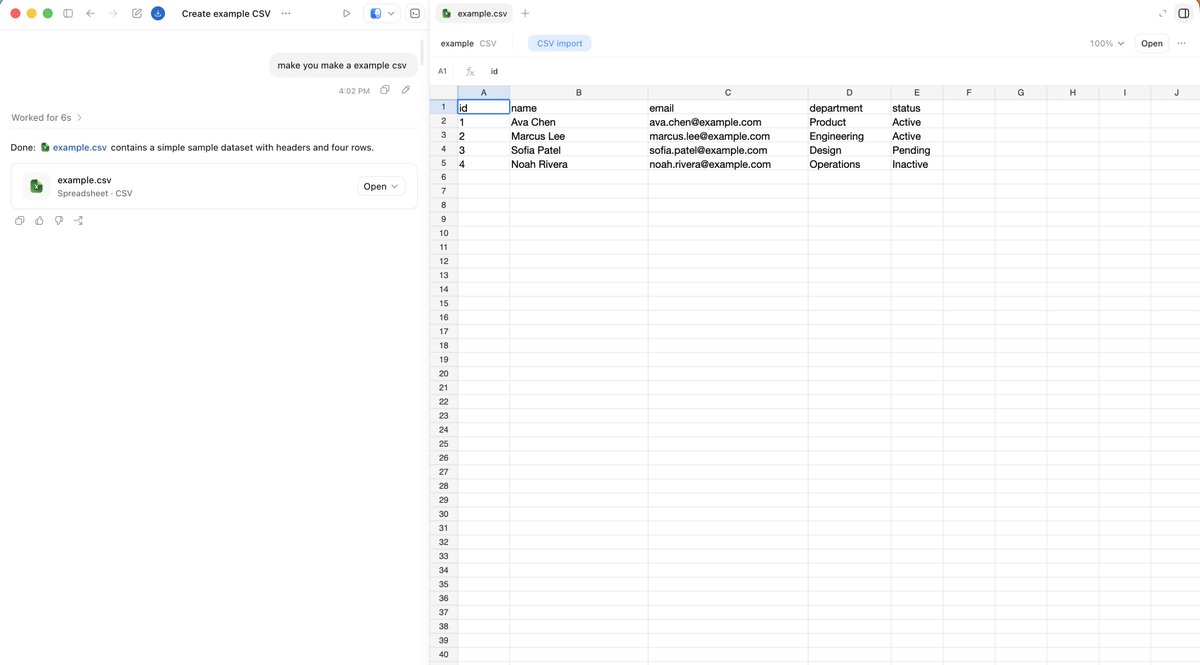
the side panel, where users can review code, documents, decks, and other artifacts
Durable threads
Durable threads: Long-running Codex threads that preserve working context across repeated sessions.
Pinned threads are one way to keep durable threads close at hand. They’re useful for recurring work streams such as:
These are persistent workspaces, not short chats. Codex can revisit them over time, preserving prior decisions, preferences, and working context that would otherwise need to be rebuilt from scratch.
Pinned-thread shortcuts make this practical. Command-1 through Command-9 jump directly into saved threads.
Voice input
Voice input is valuable because it captures the rough version of a thought before it’s compressed into polished prose.
Codex has built-in voice input. It works especially well for vague starting points that are natural to say but awkward to type:
I think someone named Ben mentioned this in Slack.
I do not remember the details.
Please go look.
For an agent that can search, gather context, and report back, that’s often enough.
It also works well for a two- or three-minute thought dump before the task is fully formed.
Transcripts work the same way. A raw meeting transcript or dictated planning note often provides better source material than a short summary because it preserves uncertainty, emphasis, and unfinished lines of thought.
Steering and queuing
Voice becomes even more useful when paired with explicit control over an active task.
Steering: Interrupting an in-flight Codex task with new direction before the current step finishes.
Steering is useful when the agent is heading the wrong way and needs a correction before it finishes. During a website review, for example, the user can interrupt the work while annotating the surface in the side panel:
Queuing: Adding work for Codex to do after the current step completes.
Queuing is different. It doesn’t interrupt the task in progress. It adds the next task to the line. A user might say:
Once the work is done, send the preview link to the reviewer in Slack.
Steering changes what Codex is doing now. Queuing changes what should happen next. Both keep the user close to the work while it’s unfolding.
Tools and reach
Once a thread has continuity, the next question is what it can act on. Codex can move outward in layers:
-
$browser for the in-app browser in the side panel, where Codex can inspect and annotate web surfaces
-
@chrome for signed-in browser state and Chrome-based workflows
-
@computer for work that only exists through a desktop GUI
$browser fits side-panel browser review. @chrome fits signed-in browser work that depends on the user’s Chrome context. @computer fits tasks that only exist through a desktop GUI.
MCP servers and connectors extend the same idea into the rest of a workflow. Slack, Gmail, and Calendar matter because many important tasks first appear as messages, inbox items, or scheduling problems before they ever become code.
Skills make repeated workflows reusable. Once a workflow proves useful, package it as a skill so Codex can run it again without relearning the routine from scratch.
Work from anywhere
The Codex mobile app changes when the user has to be at the desk. A task can start on a Mac where the files, permissions, and local setup already live, then continue while the user checks in from a phone.
That matters in small moments. Someone can leave the desk while Codex runs a longer task, answer a question from outside, approve the next step, or redirect the thread before they get back. The local environment stays in place; the user doesn’t have to.
Automations
Automations run Codex work on a schedule. Use a scheduled automation when the recurring job should start fresh from a workspace, such as a daily report or a regular repository check. Use a thread automation when the schedule should return to an active conversation with its running context.
Thread automations: Heartbeat-style recurring wake-up calls that return to the same Codex thread on a schedule.
Pinned threads are useful, but they still wait for the user to return. A thread automation can check on something every few minutes or every few hours, continue until it meets a condition, and adjust the cadence over time.
A Chief of Staff thread might run every 30 minutes:
Every 30 minutes, check Slack and Gmail for unanswered messages that need my attention.
Help me prioritize what matters most.
If someone asks me a question, research the answer as deeply as you can and draft a reply for me, but do not send it.
When the user returns, the expensive part of gathering context is often done. The human still decides what gets sent.
Thread automations also fit feedback loops. A thread automation can watch pull request comments, Google Docs comments, or Slack replies and keep the surrounding work moving while the user is away.
Consider an animation workflow where a reviewer shares a video in Slack. A thread automation can check the thread on a schedule, render an updated version when comments arrive, and reply in the same thread tagging the reviewer. If one integration can’t complete the final upload, desktop automation can finish the step through the GUI.
The loop spans Slack for feedback, the codebase for rendering, and desktop automation for the final upload.
Goals
Goals are most powerful when the task has a real finish line that the agent can keep pushing toward. A weak goal is:
Goals: Longer-running Codex tasks with a finish line the agent can keep working toward over time.
Implement the plan in this Markdown file.
A stronger goal has a measurable success criterion.
For example, an engineer might migrate an internal tool from Python to Rust by setting up the new directory, defining the goal, and making the finish line explicit: the new implementation isn’t done until the unit tests pass.
A goal combines ongoing execution with a verifier. The user defines the outcome, the stopping condition, and the signal that says whether Codex is getting closer.
Useful verifiers include:
Ambition matters, but without verification it’s just a wish.
The side panel
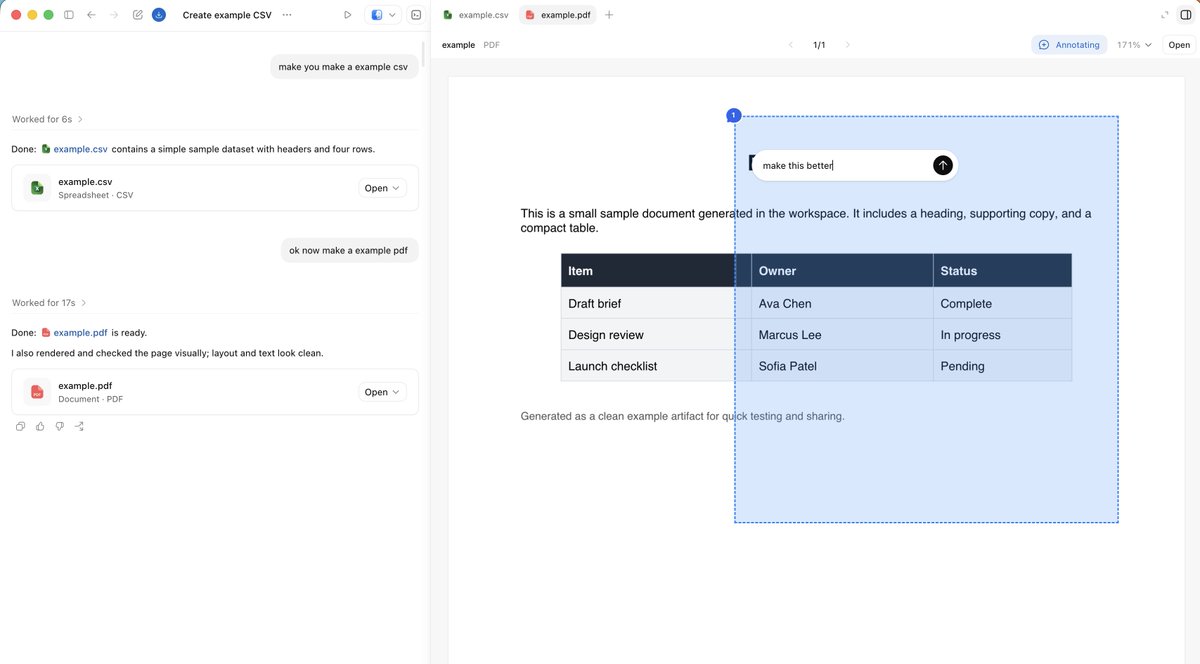
The side panel keeps the work beside the conversation that produced it. Instead of exporting an artifact and switching contexts, the user can review it in place. The output might be code, but it might also be a deck, a PDF, a browser page, a table, or another artifact created along the way.
It supports four jobs especially well:
-
Inspect artifacts
-
Annotate what needs to change
-
Operate web surfaces
-
Review changes
The side panel lets users review Markdown, spreadsheets, data tables, documents, and slides in place. They can inspect, mark up, and revise artifacts without breaking the loop.
https://developers.openai.com/codex/app/browser
The deck or PDF can stay open beside the thread that produced it, ready for direct review and repair.
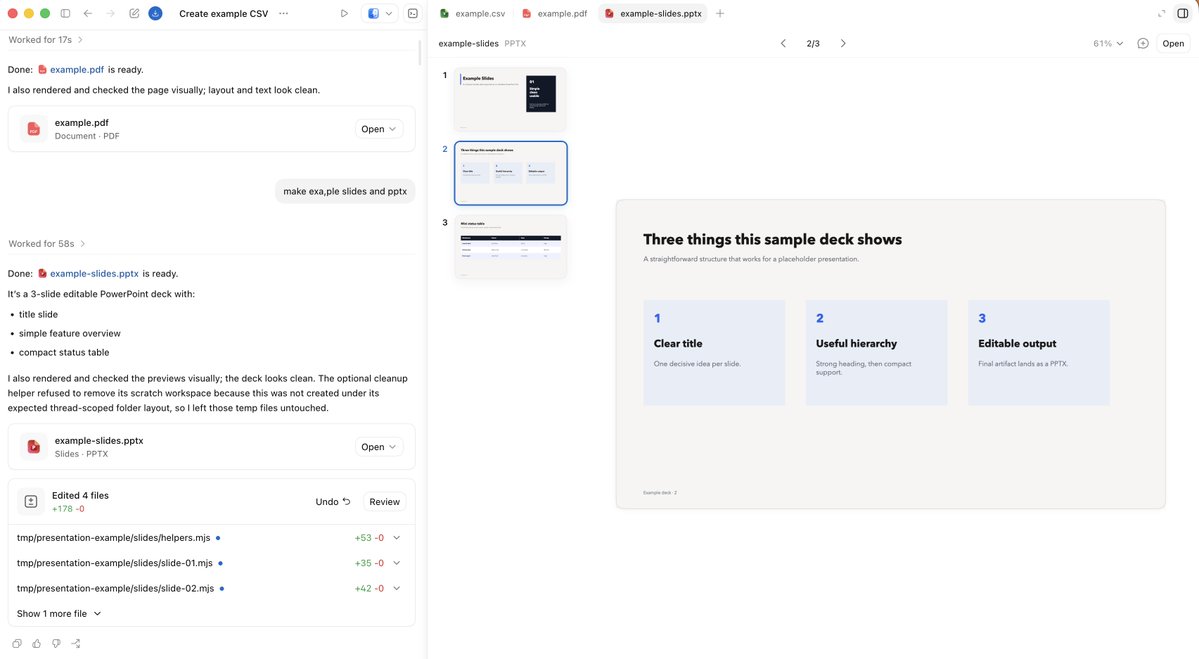
The in-app browser lets Codex inspect a rendered page, control it, and respond to annotations directly on the surface under review. Comments on a page or artifact stay inside the working loop instead of becoming a separate handoff.
The web becomes both output and control surface. Codex can build an artifact, open it in the side panel, inspect it, debug it, and keep refining the same object in place.
https://developers.openai.com/codex/app/chrome-extension
These surfaces work especially well:
-
index.html for lightweight static artifacts
-
Storybook for UI review
-
Remotion Studio for programmatic animation
-
browser-based slide decks for presentations
-
data apps for analysis workflows
A single index.html file can become a durable interactive artifact with no server required. Thread automations can also refresh static artifacts over time so a thread has something new waiting when the user returns.
Shared memory
Long-running threads become more useful when they share memory outside any one conversation.
Shared memory: Durable context stored outside a single thread so future work can resume from something explicit and reviewable.
One durable pattern is to anchor persistent threads in an Obsidian vault. In practice, that means a folder of plain files that stays straightforward to inspect, edit, move, and keep for a long time. Teams can store that folder in cloud storage, Git, Dropbox, Google Drive, or another sync layer that fits their workflow.
A vault might look like this:
vault/
├── TODO.md
├── people/
├── projects/
├── agent/
└── notes/
At the top level, AGENTS.md can define how Codex should update that workspace as it learns more about people, projects, decisions, and open loops.
Don’t copy one exact vault structure. Teach the agent where durable context should live, what context to preserve, and when not to create churn.
A practical AGENTS.md might say:
- Treat ~/vault as durable work memory.
- Prefer canonical notes over note sprawl.
- Route TODOs, people, projects, daily summaries, and scratch notes explicitly.
- Preserve decisions, blockers, owners, dates, and useful links.
- If nothing meaningful changed, do not churn the vault.
Repositories hold code. The vault holds rolling context: the people involved, what changed, what’s blocked, what needs follow-up, and what would otherwise disappear between sessions.
Important context shouldn’t live only inside a conversation transcript. Write it down somewhere the next thread can pick back up.
Codex also has first-party memory features in Settings > Personalization > Memories. They provide a local recall layer for preferences, recurring workflows, and known pitfalls. They complement explicit written context rather than replacing it. Chronicle pushes in the same direction by helping Codex build memory from recent screen context.
From code outward
Codex still starts from code. But more of the work around code is now reachable through the same system: MCP servers, browser surfaces, desktop controls, thread automations, and reviewable artifacts.
That changes the control model. Steering interrupts the work in progress. Queuing lines up the next task. Thread automations keep a thread active when the user steps away. Goals add a concrete finish line that Codex can keep working toward.
Codex can now carry a workflow from instruction to execution to artifact review, even when the work leaves the repo.